
- Most slow computers are slow for free reasons. Check before you spend a penny.
- Two minutes in Task Manager tells you which case you are in. Press Ctrl + Shift + Esc.
- A drive that is nearly full slows everything down, and clearing it costs nothing.
- Startup programs are the most common cause and the easiest thing to switch off.
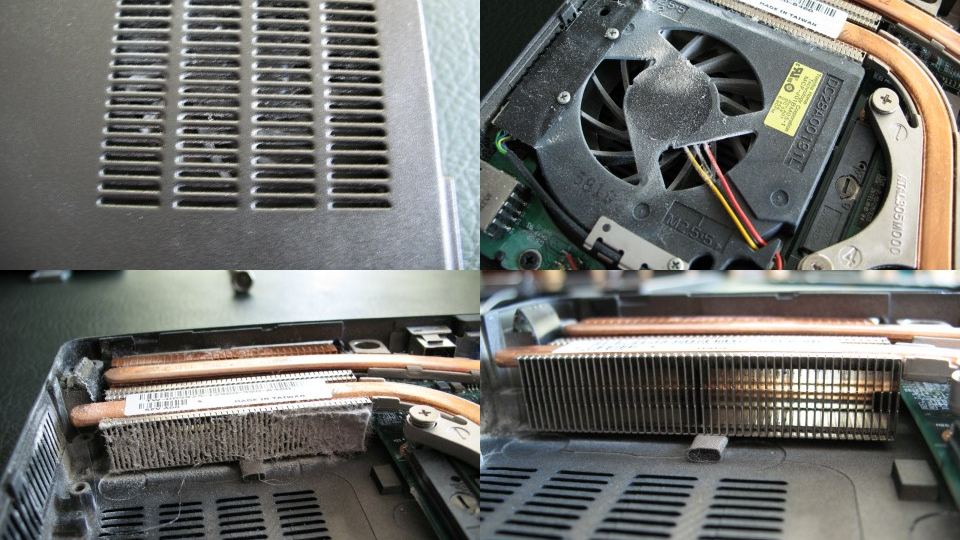
- Dust makes a chip run hot, and a hot chip slows itself down on purpose.
- Only two upgrades really change a slow machine: a solid state drive and more memory.
- If your machine already has a solid state drive and spare memory, buy nothing.
The machine used to wake up in four seconds. Now you press the button, go and make tea, and it is still thinking when you get back.
Here is the honest answer to why is my computer so slow. Most slow Windows computers are slow for reasons that cost nothing to fix. Too many programs launching themselves. A drive with no room left. A browser carrying a year of clutter. Dust in the vents. An update waiting three weeks for a restart.
Sometimes the hardware really is the limit. That case is real and it leaves a fingerprint you can look for. But reach for your wallet only after you have looked, and looking takes two minutes. This post covers Windows 10 and Windows 11. Mac users should read the short Mac section first, because these menus will not match your screen.
Disclosure: if you buy through the Amazon links here, vpod may earn a small affiliate commission. It costs you nothing and does not change what we recommend. We run no test lab. Every figure below is attributed to whoever published it, and prices are rough bands because they move.
How to Find Out What Is Slowing Your Computer Down
You cannot fix this by guessing, and you do not have to. Windows already tracks what your computer is waiting on.
Open Task Manager and Read Four Numbers
Hold Ctrl, Shift and Escape together. Click Performance on the left and you will see CPU, Memory, Disk and Network. Leave it open for a minute while the machine feels slow. One of the four usually sits near the top while the others idle.
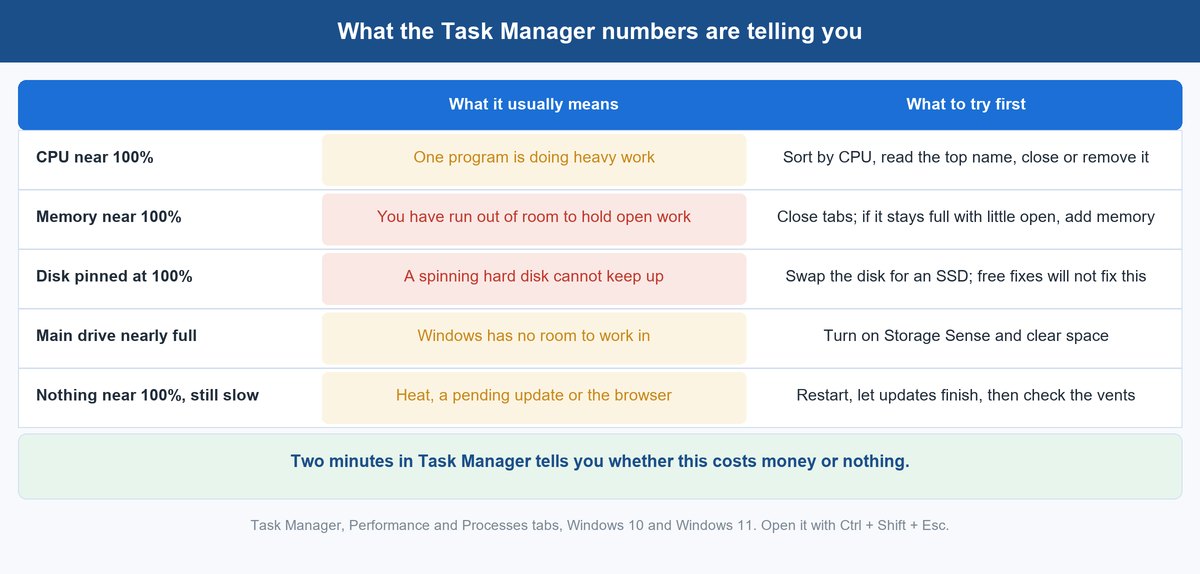
A busy chip and a busy disk feel completely different. When the chip is busy, one program hogs everything else. When the disk is the problem, everything pauses together and the cursor stutters. Network is the odd one out. A high Network number just means something is downloading or syncing, not that your computer is slow, so if only web pages drag while everything else is fine, the problem is your connection and not the machine. The table above turns the other three readings, plus a full drive, into a next step.
Then Check How Full Your Main Drive Is
Open Settings, then System, then Storage, and look at the C: drive bar. Intel’s advice on slow PCs is to leave a hard disk 10 to 15 percent free, and a solid state drive 25 to 30 percent free. Microsoft’s performance guide for Windows 10 and 11 says low disk space can reduce system performance.
Windows uses spare space as scratch paper for open work and updates. Microsoft’s Windows 11 requirements list 64 GB of storage as the minimum and warn that updates may need more over time. A drive with two gigabytes left is not a storage problem. It is a speed problem.
Five Free Fixes to Try, in the Order That Works
Do these in order. Most slow machines are cured somewhere in this list.
1 Restart the Computer and Let the Update Finish
Sleep is not a restart. A laptop that only closes and opens for weeks never clears out. Intel explains it simply: your system sets aside memory for each program you open, and a restart clears that and loads only what the machine needs.
A pending Windows update also keeps the machine busy in the background for hours. On Windows 11 go to Settings, then Windows Update. On Windows 10 it is Settings, then Update and Security, then Windows Update. Install what is waiting, and restart through Start, Power, Restart. Then use the machine for a day before judging it.
2 Turn Off the Programs That Start Themselves
This is the most common cause of a slow morning. Chat apps, updaters, cloud sync tools and printer helpers all add themselves to the launch list, and nobody ever takes one off.
Microsoft’s instructions are short. Open Task Manager, choose Startup apps, right click anything you do not need at boot, and select Disable. You are not uninstalling it. The program still opens when you click it. It just stops loading before you asked.
3 Give the Main Drive Some Room
Deleting a few photos will not do it. You want gigabytes back. Microsoft says Storage Sense runs when your device is low on disk space, clears unneeded temporary files, and empties the Recycle Bin on a schedule you set.
Turn it on under Start, Settings, System, Storage. One catch from Microsoft’s page: it works on your system drive only, the one Windows lives on. Then look at what is actually large. Old downloads, finished video projects and abandoned games are usually where the space went.
4 Close the Tabs and Look at Your Browser Extensions
For many people, a slow computer is a slow browser wearing a costume. Thirty open tabs each hold their own slice of memory. Watch the Memory number, close half your tabs, and watch it drop.
Extensions are the quieter half. Every toolbar and coupon finder runs inside every page you open. Switch off everything you do not use weekly and restart the browser. If the machine feels quicker straight away, you found your cause and it was free.
5 Run One Malware Scan and Then Move On
Something hidden and busy is a real cause, so check once. Windows Security is already installed. Open it, choose Virus and threat protection, run a full scan, act on what it finds, and restart.
Then stop. Four cleaning tools are not four times safer, and paid speed boosters mostly sell a scan you can run for free. If the scan comes back clean, your cause is elsewhere on this list.
Why Dust and Heat Quietly Take Your Speed Away

People miss this one because nothing on screen announces it. The machine simply gets slower the longer you use it.
The Pattern That Gives Heat Away
Heat has a signature. The computer is fine for ten minutes, then noticeably slower. The fan is loud. A laptop is hot on your legs. Let it cool and it feels quick again for another ten minutes.
Intel describes what happens inside. When a core passes its throttle temperature it reduces power to stay safe, and Intel says that protection may cause performance loss because the chip drops its frequency. If cooling still cannot keep up, the processor shuts down to prevent damage.
What Helps, and What to Leave Alone
Look at the vents, then look at where the machine sits. A laptop on a duvet has its air intake blocked, and cleaning will not fix that. Put it on something hard and flat. Pull a desktop out from the wall and check the back panel is not furry.
For the inside, HP’s troubleshooting page says to make sure the fan is clean, unobstructed and working. On a desktop that is easy with the side off. On a laptop it means opening the base, which is worth a small repair fee. And since dusty rooms feed dusty fans, less dust in the air is the cheapest version of this fix.
When the Hardware Really Is the Problem
Sometimes the free list runs out and the machine is still slow. That is information, not failure.
A Spinning Hard Disk Is the One Thing You Cannot Fix for Free
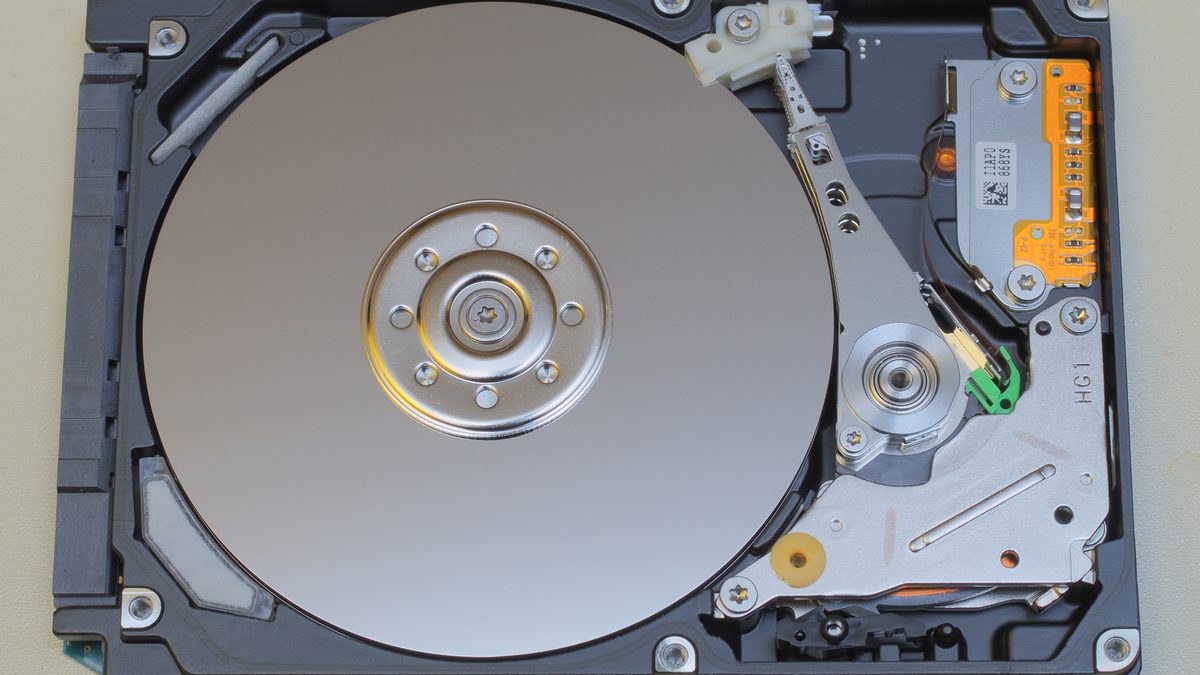
If your computer was built before roughly 2018, or was a budget model after that, it may still boot from a spinning hard disk. That is a real motor turning a metal platter while an arm swings across it. Everything the computer reads waits for that arm.
The signs are easy to spot. Task Manager shows the disk pinned near 100 percent while transfer speed stays low. Windows takes over a minute to become usable after login. Swapping that disk for a solid state drive is the biggest change most old machines can get. Intel says the switch can improve many parts of how a computer performs, from how long it takes to start up onwards. Spinning drives also wear out, which is why drive failure data is worth reading before you trust an old one.
Not Enough Memory Shows Up as Everything Slowing at Once
Memory is the desk your computer works on. When the desk is full, Windows shuffles things to the drive to make room, and everything slows together. The pattern is distinctive: fine with two programs, falling apart with ten tabs and a video call.
Microsoft’s published minimum for Windows 11 is 4 GB, and a minimum is exactly that. HP’s troubleshooting page suggests 8 GB suits most users. Check yours under Performance, then Memory. If it sits near the top with a few things open, more memory will help. If it sits at half during normal work, more memory changes nothing.
Who Should Buy Nothing at All
Be honest here, because this is where money gets wasted. If your memory sits at fifty percent, your disk mostly idles, and the machine already has a solid state drive, no part you can buy will make it faster. Something on the free list is your cause.
The other group is smaller but matters. If the machine is very old, has memory soldered to the board, and is slow at everything, an upgrade is money you will not get back. Spending well over a hundred dollars on a machine worth less than that is not an upgrade.
Which Upgrade Fits the Machine You Have
Pick the line that matches what Task Manager showed you. Every option here assumes the free list above did not solve it.
What did the numbers actually tell you?
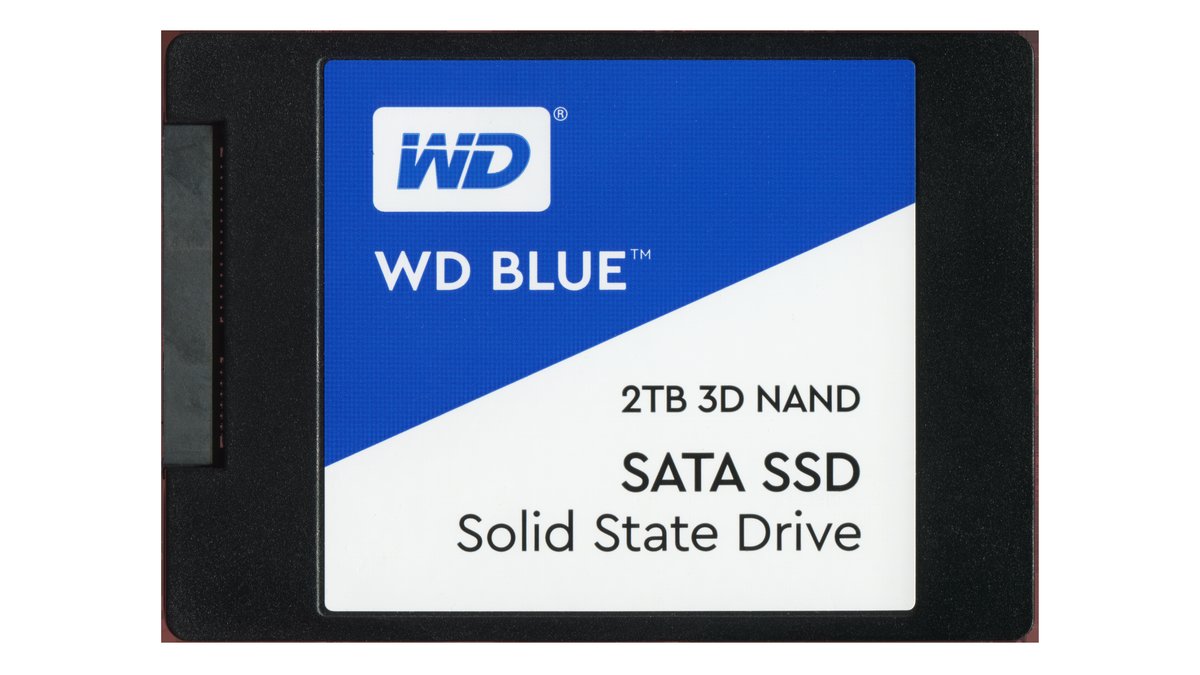
★ Your pick: WD Blue SATA SSD
Replaces a spinning hard disk, the one cause no free step can touch
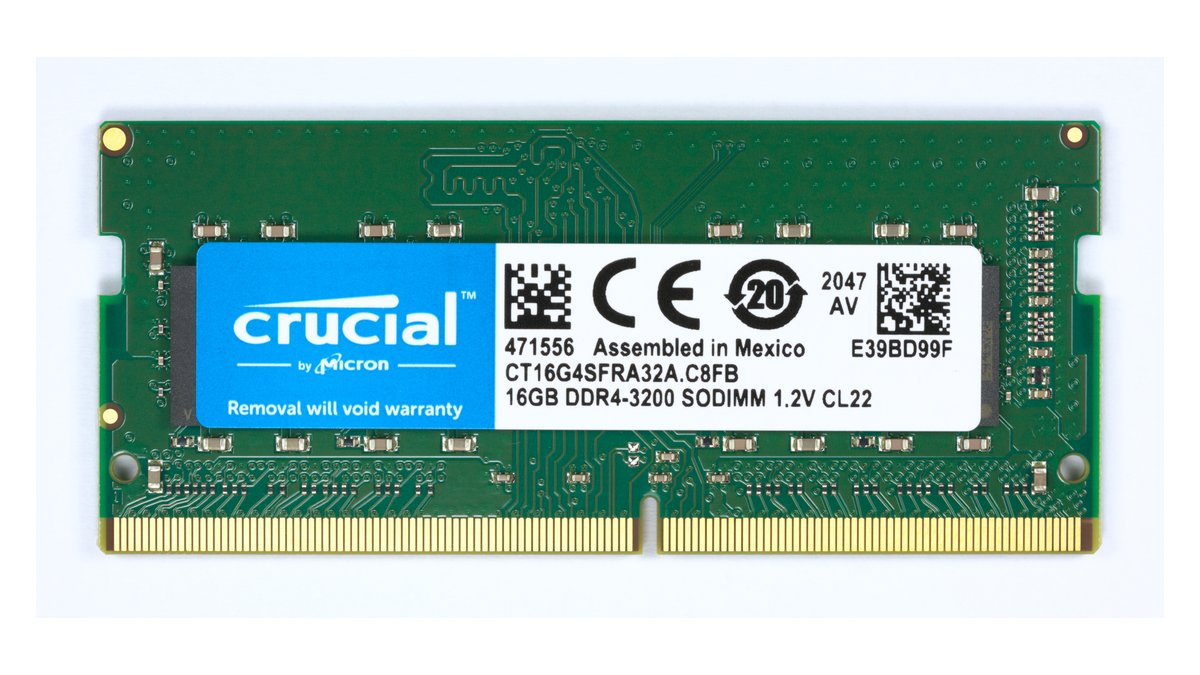
★ Your pick: Crucial DDR4 laptop memory
Ends the everything-slows-together problem, once you know which type your machine takes
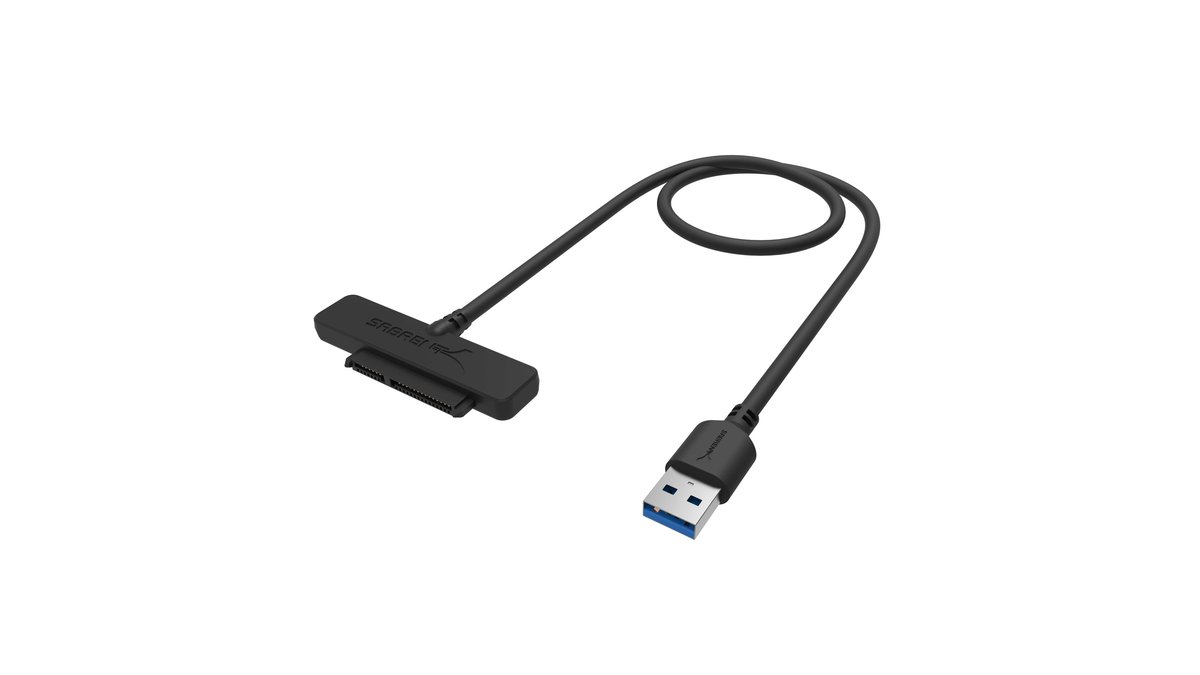
★ Your pick: Sabrent USB to SATA adapter
Lets you copy Windows across first, so nothing has to be reinstalled
👑 Our Top Pick — Best Overall Value
WD Blue SATA SSD
The biggest single change an old machine can get, if your disk sits pinned at 100 percent
Opens on our Top Pick. Tap an option to see the best match for you.
Three Paid Fixes, and Who Should Skip Each One
Drive and memory prices move a lot. Treat every range here as a snapshot from the day this was written, and check today’s number before you order.
1 A WD Blue SATA SSD to Replace a Spinning Hard Disk
This is for one reader: the one whose disk sits pinned at 100 percent while barely moving data. A 2.5 inch SATA drive is the same size and shape as the hard disk already in the machine, so it drops into the same bay and cable.
The WD Blue SA510 is Western Digital’s current 2.5 inch SATA drive, listed at up to 560 MB per second. Top speed is not really the point. A solid state drive has no arm to swing, so the small scattered reads Windows does constantly stop being a queue. Expect roughly $180 to $240 for the terabyte version; across known brands, terabyte 2.5 inch SATA drives were listed at roughly $150 to $240 when this was written.
- Shape: 2.5 inch, 7 mm thick, the standard laptop and desktop bay size.
- Connection: SATA III, the same cable an existing hard disk uses.
- Rated speed: up to 560 MB per second, as listed by the maker.
- Capacities: several sizes, with a terabyte the common sweet spot.
- Fixes the one cause of slowness no free step can touch.
- Drops into the bay and cable your old disk came out of.
- Makes an old machine feel new for far less than a new machine.
- Useless if your computer already has a solid state drive.
- You still have to copy Windows across, or reinstall it.
- Will not fit a machine that only takes the small M.2 stick shape.
Check today’s price on Amazon.
2 A 16 GB Crucial DDR4 Laptop Memory Module
This is for the reader whose Memory number lives near the top while the disk stays calm. Extra memory makes nothing faster by itself. It stops the computer running out of desk space, which is what makes everything slow together.
The Crucial CT16G4SFRA32A is a single 16 GB DDR4-3200 SO-DIMM, the small stick shape laptops use. Crucial is Micron’s consumer brand, so the module comes from a company that makes memory chips rather than one that repackages them. Expect roughly $100 to $150 for the 16 GB module and roughly $60 to $95 for the 8 GB version.
- Type: DDR4-3200 SO-DIMM, the 260-pin laptop stick format.
- Capacity: 16 GB in one module, with an 8 GB version of the same line.
- Voltage: 1.2 V, standard for DDR4 laptop memory.
- Maker: Crucial, which is Micron’s consumer brand.
- Ends the everything-slows-at-once feeling when you keep a lot open.
- One module often fills a laptop’s only free slot.
- Comes from a memory manufacturer rather than a rebadger.
- Wrong type for DDR3 and DDR5 machines, which is easy to get wrong.
- Useless if the memory in your laptop is soldered to the board.
- Some machines want matched pairs rather than one large module.
Check today’s price on Amazon.
3 The Sabrent USB Adapter That Makes the Swap Easy
Nobody mentions this part, and it is the difference between a two hour job and a lost weekend. Replacing a drive means either reinstalling Windows from scratch or copying your existing installation across. Copying needs both drives connected at once, and a laptop has one bay.
The Sabrent EC-SSHD is a plain cable with a SATA plug at one end and USB-A at the other. Plug in the new drive, run the copying tool most drive makers give away, then swap the drives over. Expect roughly $8 to $16. Afterwards the old hard disk plugs into the same cable and becomes backup storage, which beats a drawer.
- Ends: USB-A on one side, SATA data and power on the other.
- Drive support: 2.5 inch SATA solid state drives and laptop hard disks.
- Power: taken from the USB port, with no separate power brick.
- After the swap: turns the old drive into external storage.
- Lets you copy Windows over instead of reinstalling everything.
- Cheap enough that it barely registers beside the drive.
- Gives the old disk a second life as backup storage.
- Only fits 2.5 inch SATA drives, not the M.2 stick shape.
- Copying software is a separate download from the drive maker.
- Pointless if a repair shop is doing the work.
Check today’s price on Amazon.
How to Check a Part Fits Before You Pay for It
Storage comes in two shapes. A 2.5 inch SATA drive looks like a small flat box on a cable. An M.2 drive looks like a stick of gum clipped flat to the board. They are not interchangeable. Your model number is printed on a label on the base or the back; search that number with the words service manual and the maker’s own document will tell you which you have.
Memory is fussier. DDR3, DDR4 and DDR5 will not fit each other’s slots, desktops use the long DIMM shape and laptops the shorter SO-DIMM, and some machines want two matched modules. Let a tool read your machine rather than guessing: Crucial’s system scanner on crucial.com reports what fits, and other memory makers run similar tools.
What Changes If You Are Using a Mac
Everything above is written for Windows and the menus will not match a Mac. The ideas still carry over: a nearly full drive, too many login items, a browser full of tabs and a fan choked with dust slow a Mac for the same reasons.
The tool to open is Activity Monitor, not Task Manager. Apple’s own guide describes it as what to use when your system is acting sluggish, and it shows processor activity, memory, energy and disk. Read your numbers there first. Note too that most recent Macs have memory built into the chip, so adding memory later is not an option the way it often is on a PC.
The Bottom Line on a Slow Computer
The most useful thing anyone can tell you about a slow computer is that you probably do not need to buy anything. Restart it properly. Cut the startup list. Clear real space. Trim the browser. Clean the vents.
If that does not work, Task Manager has already told you which of two parts to buy, and only one of them will apply to you. That is a much better position than walking into a shop and asking what is wrong.
Frequently Asked Questions
How do I find out what is slowing down my PC?
Press Ctrl + Shift + Esc to open Task Manager and click Performance. Watch CPU, Memory and Disk while the machine feels slow. Whichever sits near the top of its range is your cause. Then check how full the main drive is under Settings, System, Storage.
Why is my computer so slow even though I have a lot of storage?
Free space is only one cause. If the drive has room and the machine still drags, read the other numbers. A pinned disk usually means a spinning hard disk rather than a full one. A high memory reading means too much open at once. A machine that starts fast then fades is running hot.
My computer was fine last week, so what changed?
Three things cause sudden slowdowns more than anything else. A Windows update installing in the background, a new program that added itself to startup, or a browser extension you accepted without reading. Restart first, let updates finish, then check the startup list.
Does adding more RAM make a computer faster?
Only if you were short of it. Memory is working space, not speed. If Task Manager shows memory near the top while you work, more will help a lot. If it sits at half, adding more changes nothing you will notice. Check the number before you buy.
Is it worth putting an SSD in an old laptop?
If the laptop still boots from a spinning hard disk, it is usually the best money you can spend on it. Machines that took a minute to become usable often become usable in seconds. It is not worth it if there is already a solid state drive inside.
Do PC cleaner apps actually speed anything up?
Mostly they do things Windows already does for free. Storage Sense clears temporary files, Task Manager manages startup programs, and Windows Security scans for malware. A paid cleaner rarely finds a cause those three miss, and some add their own program to your startup list.
Why is my computer slow but my internet is fast?
Because they are separate problems. A fast connection cannot help a machine short of memory, out of drive space, or waiting on a spinning disk. If pages load slowly while a speed test looks fine, suspect the browser: too many tabs, too many extensions, or a profile that needs clearing.
About the Author
Elena Brooks
Elena Brooks writes about the everyday buying decisions that are easy to get wrong and expensive to repeat. She reads the manufacturer documentation herself, quotes it directly, and is happy to tell you that the honest answer is to spend nothing at all.