
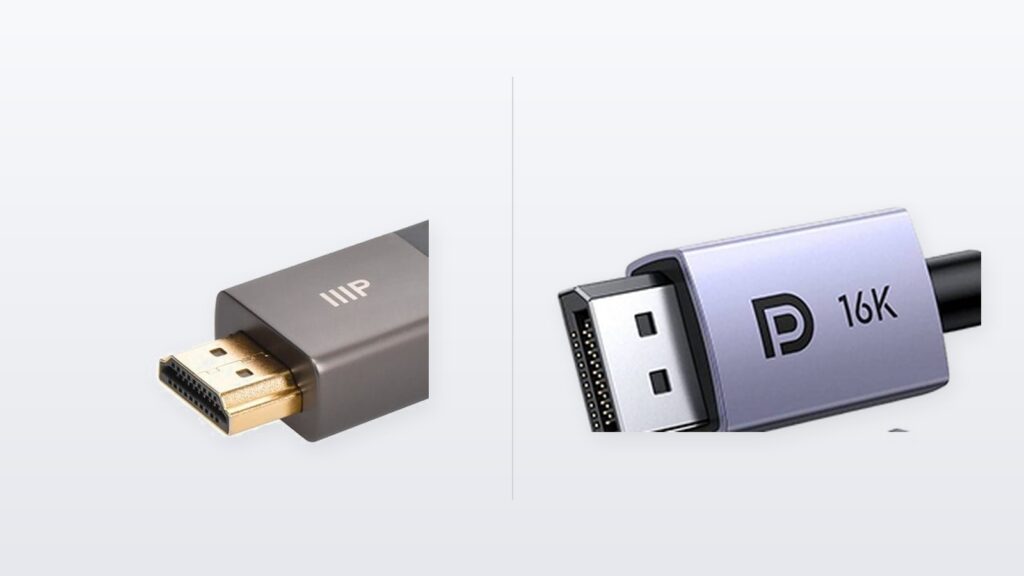
- Both ports carry picture and sound down one cable. Neither is better at everything.
- Your gear usually picks for you. Televisions, consoles and streaming sticks have HDMI and nothing else.
- The choice only matters when a computer meets a monitor, and mostly when that monitor is fast.
- DisplayPort can run two or three monitors from one socket, if the first monitor has a DisplayPort output. HDMI cannot do it at all.
- HDMI can send sound back down the same cable to a soundbar. DisplayPort cannot.
- A cable is only as fast as the two things it is plugged into, so a faster cable adds nothing on its own.
- If you do buy, buy the certification mark, and check the mark rather than the marketing.
There is a cable in a drawer somewhere in your home. It came in a box with a monitor or a console, you never used it, and you have no idea whether it is the good one.
Here is the short version. For almost everything you plug in, the HDMI vs DisplayPort question answers itself, because only one of the two sockets is fitted on the thing in front of you. Televisions get HDMI. Games consoles get HDMI. Computer monitors usually get both.
The choice only becomes a real choice in one place: a computer plugged into a computer monitor. Even there, the difference stays invisible until you ask for more than a normal screen can show. So the useful question is not which standard wins. It is which socket you have, what your screen can actually display, and whether the cable already in the box gets you there. Usually it does.
Disclosure: if you buy through the Amazon links in this post, vpod may earn a small affiliate commission. It costs you nothing and it does not change what we recommend. We do not run a test lab. Every speed figure below comes from the group that wrote the standard, and we say which group every time.
What are you actually trying to plug in?
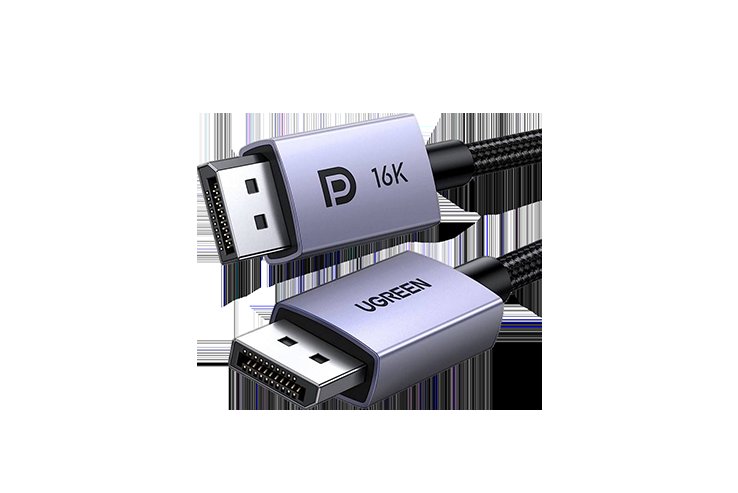
★ Your pick: UGREEN DisplayPort 2.1 Cable
Certified by VESA, and DisplayPort is the socket a gaming monitor is happiest on
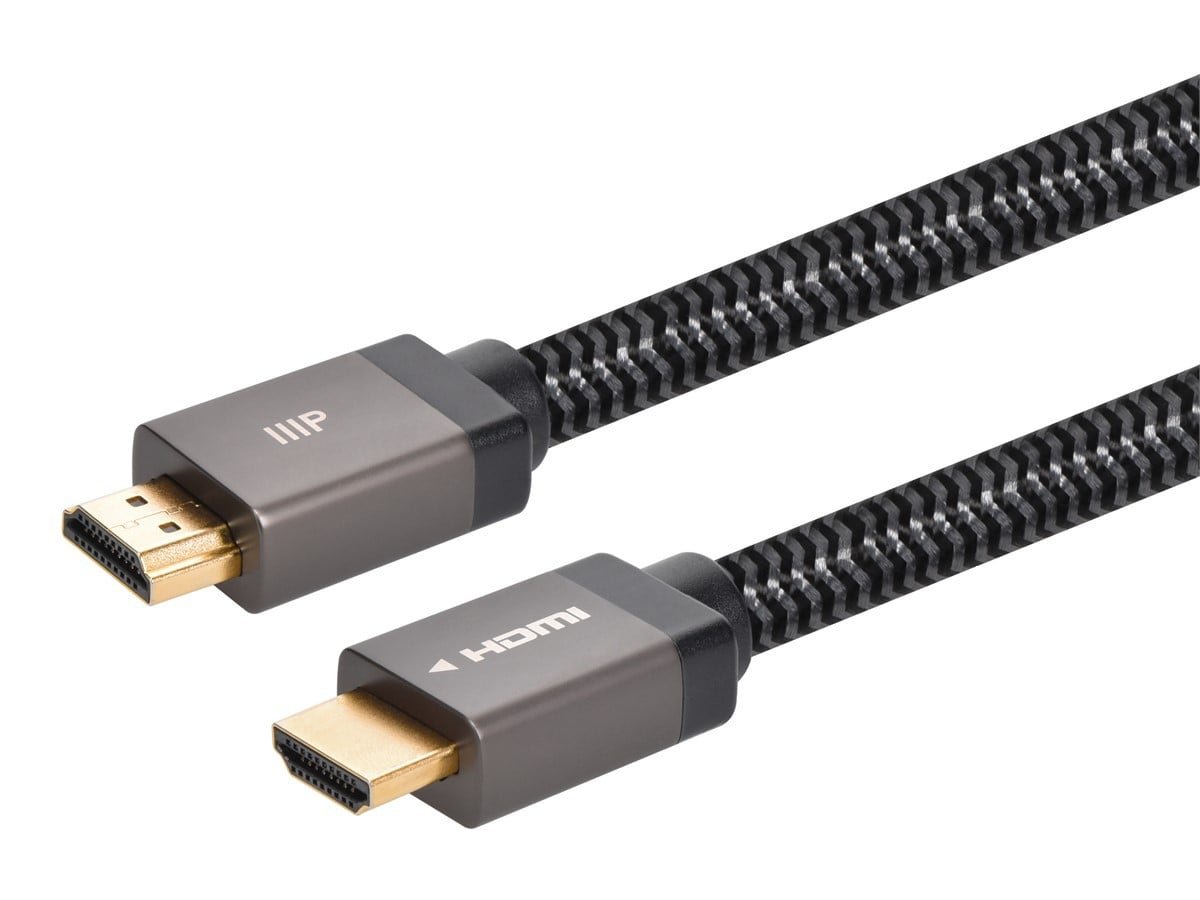
★ Your pick: Monoprice 8K Certified Ultra High Speed HDMI Cable
Carries 4K at 120 frames a second and sits on the official HDMI certification programme
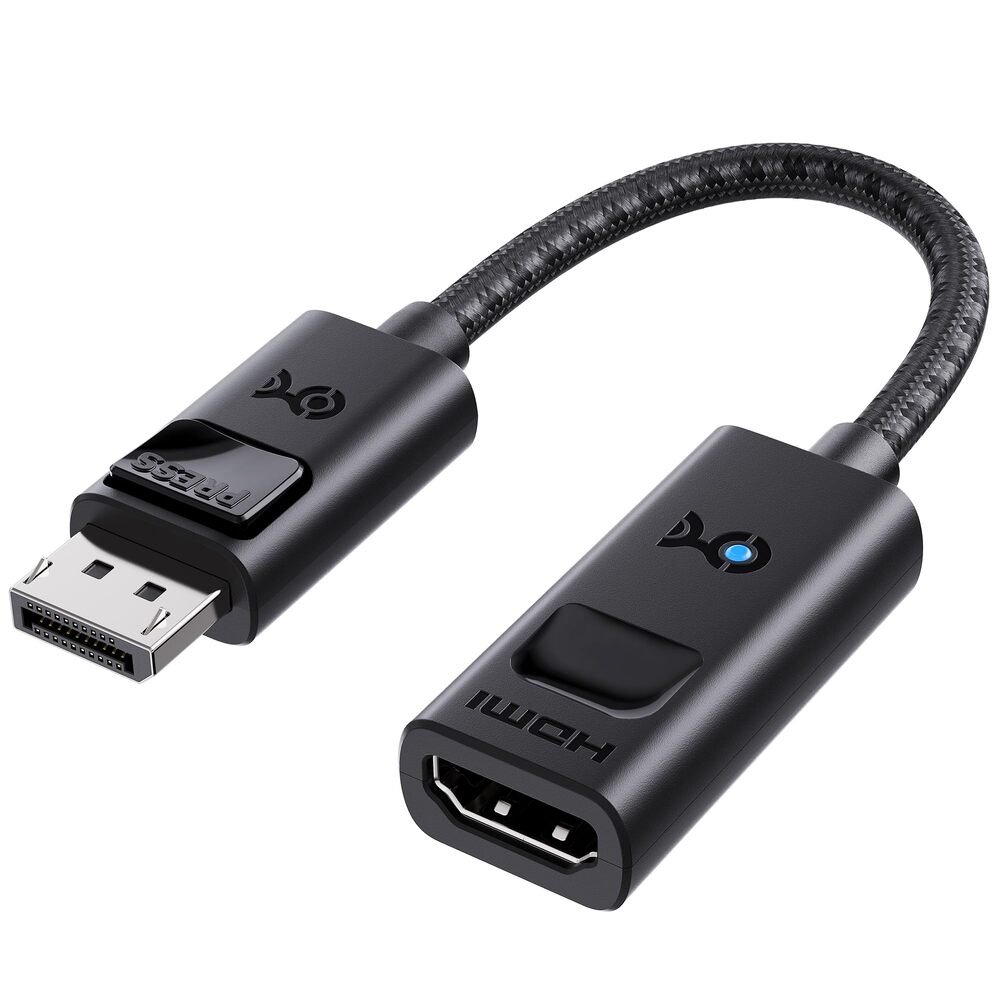
★ Your pick: Cable Matters DisplayPort to HDMI Adapter
Turns a spare DisplayPort output into an HDMI one without dropping to a slow picture
👑 Our Top Pick — Best Overall Value
UGREEN DisplayPort 2.1 Cable
The cable that fixes a fast gaming monitor running slow, certified by the group that writes the DisplayPort rules
Opens on our Top Pick. Tap an option to see the best match for you.
What These Two Ports Actually Do Behind Your Screen
Both of them do the same job. They take the picture your computer or console has just drawn and carry it to a screen, with the sound riding along the same wire. They are not different kinds of thing. They are two answers to one question, written by two groups of people, for two different rooms in your house.
Both Cables Carry the Same Picture and the Same Sound
Each one sends the image as fast pulses of data rather than a wobbly analogue signal. That is why a picture over either is either perfect or plainly broken, with no fuzzy middle. Neither adds anything of its own. A cable cannot make colours richer or blacks deeper; it moves numbers your machine already worked out. If a picture looks better after a cable swap, something was failing before and now it is not.
What can differ is how much data per second the link is allowed to move. The version of the standard sets that number, and both ends have to agree on it. A very fast cable joined to a slow socket runs at the slow socket’s pace, every single time.
One Grew Up on Televisions and One on Computers
HDMI arrived in the early 2000s to clean up the back of a television. Its whole design assumes a room with a TV, a box that plays something, and often a speaker system. The HDMI Forum runs the standard, and the HDMI Licensing Administrator handles the rules and the cable testing.
DisplayPort came from VESA, a standards group of computer and display companies, and was built to replace the old VGA and DVI sockets on PCs. Its design assumes a desk, a graphics card and possibly more than one monitor. Neither was a mistake. They solved different rooms, and the awkwardness you feel is simply the moment those rooms meet at your desk.
How to Tell an HDMI Port From a DisplayPort in Five Seconds
You do not need to move furniture for this. One look at the socket does it, and if you are still unsure, the two tiny letters printed beside it will settle things.
The Shape of the Socket Gives It Away
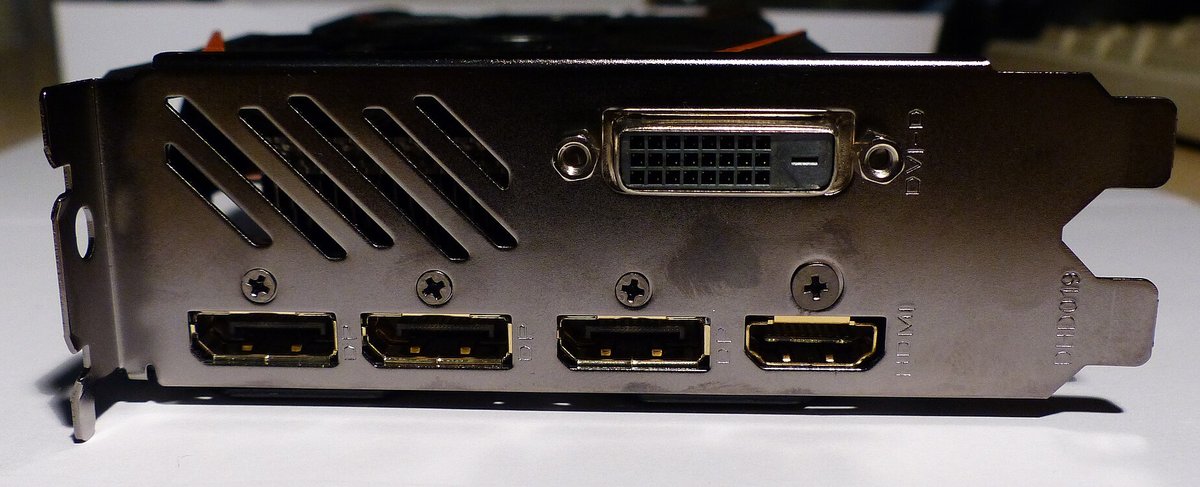
An HDMI socket is a flat, wide slot with both bottom corners cut on a slant, like a squashed trapezoid. It is symmetrical, so both ends of the shape match. A DisplayPort socket is also flat and wide, but only one corner is cut and the other stays square. That lopsided shape is the fastest way to tell them apart from across a desk. The graphics-card photo higher up shows all of them together: the three lopsided sockets on the left are DisplayPort, and the symmetrical, slightly narrower one beside them is HDMI.
The plugs follow the same rule. A DisplayPort plug usually adds two small springy hooks and a button you press to release them, so it clicks in and stays put. An HDMI plug just pushes in by friction. If a plug clicks when it seats and needs a button to come out, you are holding DisplayPort.
The Label Beside the Socket Confirms It
Makers almost always print a label next to each socket. On a graphics card it is stamped into the metal bracket. On a monitor it is printed on the plastic beside the input. Look for the word HDMI, the letters DP, or a small logo that looks like a D with a P tucked inside it.
On a television every video input says HDMI followed by a number, because the set needs to tell them apart in its own menu. Those numbers are not decoration, and the difference between them can cost you half your frame rate.
Which Port to Use for the Screen and Machine You Already Own
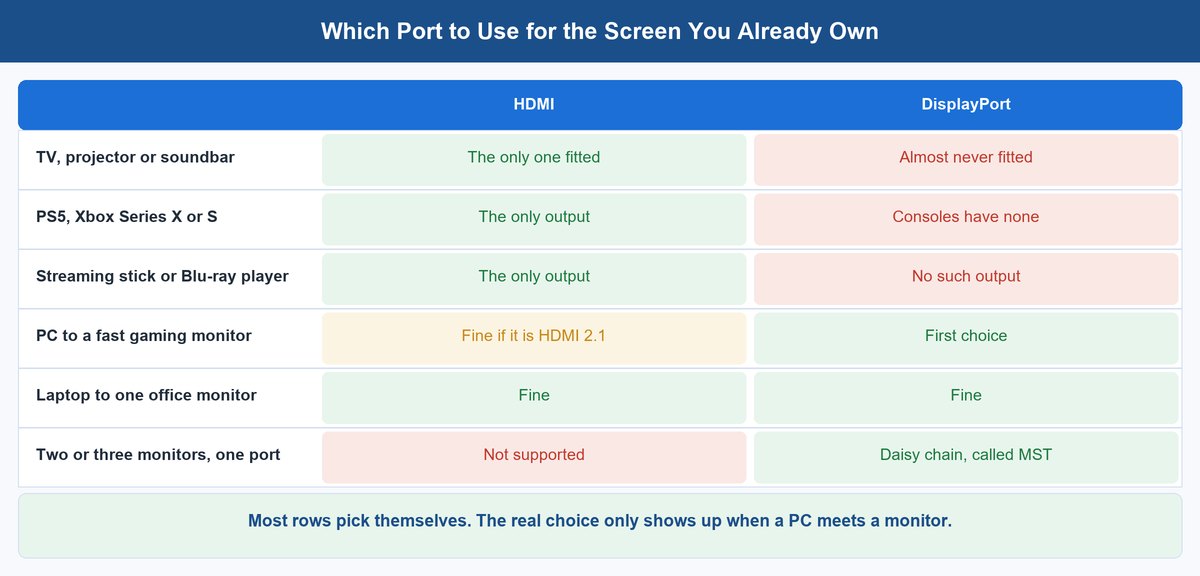
This is the part people came for, and it is shorter than you might expect. Walk through what you own and the answer appears on its own.
Most of the Time the Choice Is Already Made
A television has HDMI inputs and no DisplayPort input. Not because DisplayPort is worse, but because nothing you would plug into a TV has a DisplayPort output. A PS5 has one HDMI socket. An Xbox has one HDMI socket. A streaming stick, a disc player and a soundbar are all HDMI only.
That is the whole story for the living room. There is no decision and no upgrade to buy. Use the HDMI cable that came in the box, and if there was no cable in the box, buy one that carries a real certification mark. Laptops are the other easy case: most now give you HDMI, or expect you to run video out of a USB-C socket instead.
When Both Ports Are Free, Pick by the Job
Now the interesting case. A desktop PC with a graphics card almost always offers more DisplayPort sockets than HDMI ones, often three of one and one of the other. A computer monitor usually offers one of each. Both cables work, so here is the rule of thumb.
If the monitor is a fast one, or you plan to add a second screen later, use DisplayPort. If the screen is a television, or you want a soundbar involved, use HDMI. If it is an ordinary office monitor at 60 or 75 frames a second, genuinely either: pick whichever cable you already own and spend the money on something you will notice.
When the Difference Actually Shows Up on Screen
Three situations make the choice real and visible. Outside these three, it honestly is not.
Fast Gaming Monitors Are the Real Dividing Line
A gaming monitor asks for a lot of data. More pixels means more to send, and a higher refresh rate means those pixels are redrawn more often each second. Multiply the two and the number climbs fast.
When you run out of room, the monitor does not fail loudly. It quietly drops to a lower refresh rate, or the driver squeezes the picture using compression, or colour detail gets thinned. You end up with a 240Hz monitor running at 120Hz and no error message anywhere. That is why DisplayPort is the default advice for gaming desks: it has offered more room per generation, and graphics cards give you more of its sockets. If your monitor reports a lower refresh rate than you paid for, check the cable and the port before you touch anything else.
Two or Three Screens From a Single Port
DisplayPort can carry more than one screen’s picture down one cable and split it at the far end. VESA calls this Multi-Stream Transport, usually shortened to MST. In practice, monitor one plugs into your PC and monitor two plugs into monitor one. The catch is that monitor one needs a DisplayPort output socket of its own, and plenty of monitors do not have one, so check the back of the screen before you count on it.
HDMI has no equivalent, so every HDMI screen needs its own socket back at the machine. On a small computer with one HDMI output and nothing else, that is a hard limit. For anyone running a two or three screen desk, this feature alone settles the argument, and it is worth counting sockets before you buy the machine that will sit under that desk, which is something we went into in our guide to picking a mini PC for a home lab.
Sending Sound Back to a Soundbar
HDMI has a trick DisplayPort does not. It can send audio backwards, from the television to a soundbar or receiver, along the same cable that brought the picture in. The current version is called eARC, and the HDMI Forum says it “supports the most advanced audio formats and highest audio quality”.
That matters more than it sounds. Your TV apps, your console and your streaming stick can all send sound to one speaker system with no second cable and no second remote. Usually only one HDMI socket on a TV does this, and it is labelled. DisplayPort carries sound out to a monitor’s speakers perfectly well; it simply has no path back, because nothing in the computer world ever needed one.
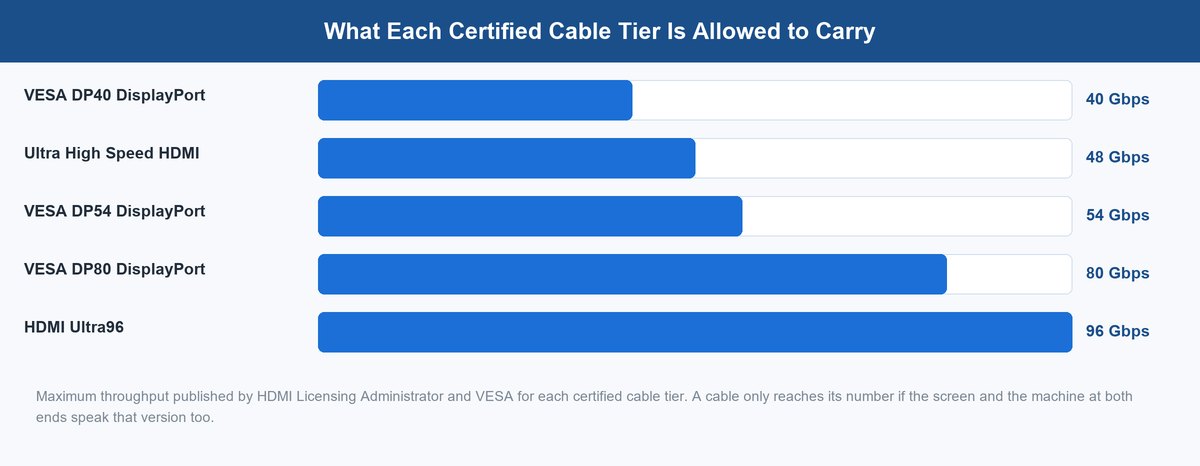
One more thing worth knowing before you spend. HDMI has a newer tier above Ultra High Speed, called Ultra96, which the HDMI Forum rates at 96 gigabits a second. Almost nothing on sale today can use it, so it is not a reason to wait or to pay more. It is only a reason to keep the receipt if you are buying for a television you have not chosen yet.
Why Your Television Almost Certainly Has No DisplayPort
It is a fair question. DisplayPort is a capable standard with plenty of speed, so why has no television maker fitted one?
Because a socket is only worth fitting if something plugs into it. Televisions sit at the end of a chain of devices, and every device in that chain ships with an HDMI output. A DisplayPort socket on a TV would sit empty for the life of the set.
HDMI also carries the living-room housekeeping DisplayPort never needed: sound going back to the soundbar, one remote controlling three boxes, and an automatic switch into game mode when a console wakes up. Those are television problems, and HDMI grew up solving them. The two standards did not fight and produce a winner. They stayed in their own rooms, and the only place they overlap is your desk.
How to Check a Cable Is Genuinely Certified Before You Pay
Cable packaging and product pages are full of confident numbers, and anyone can print 8K on a bag. What you want is a claim somebody independent has checked. Both standards let you check it yourself in under a minute.
Scan the Label on an HDMI Cable
For the fastest HDMI cables, testing is not optional. The HDMI Licensing Administrator says every Ultra High Speed HDMI Cable “must pass certification testing at an HDMI Forum Authorized Testing Center”, and that the programme is mandatory.
The useful part for a shopper is the label. A genuine cable carries a certification label with a QR code, on the packaging and often on the cable jacket. Scan that code with any ordinary phone and it returns the brand, the model and the length, and confirms the cable passed its compliance audit. That beats a product title. No scannable label means a claim with nothing behind it.
Look Up a DisplayPort Cable on VESA’s Own List
DisplayPort works differently. VESA runs a certification programme with named tiers and publishes the results. A cable is certified as DP40, DP54 or DP80, and the number is the throughput that tier guarantees in gigabits per second.
VESA publishes the results on the DisplayPort certified products database. Type your cable’s brand into the search box and every certified model comes back with its tier printed beside it. A search for UGREEN, for example, returns a DP54 cable, a DP40 one and faster DP80 models all under the same brand, so read the tier and not just the name. There is no faster way to sort a real claim from a hopeful one.
Three Cables Worth Buying if You Really Do Need One
Most readers can stop here and use what they own. If you have worked out that you genuinely need a cable, these three cover every branch of the decision. Prices move week to week, so treat each range as a rough band and check today’s number before you buy.
Monoprice 8K Certified Ultra High Speed HDMI Cable
This is the HDMI cable to buy if you have a games console or a fast television and you want the picture the hardware can actually produce. It sits on the official Ultra High Speed programme, so it was tested at an authorised centre rather than self-declared, and it carries the scannable label described above.
The reason to spend anything here is 4K at 120 frames a second. That is the mode a PS5 or an Xbox Series X can reach on a modern TV, and it needs far more room than the cable that came with your old set. An older High Speed cable still gives you a picture, then quietly holds you at a lower frame rate with no warning.
Monoprice sells it braided and plain, in lengths from about three feet to fifteen. Expect roughly $10 to $30 depending on length, with the short ones at the bottom of that band. The braided six foot version suits most desks and TV stands.
- Certification: on the HDMI Ultra High Speed programme, with a scannable label.
- Speed: rated up to 48 Gbps, the maximum for that cable tier.
- Modes: 4K at 120 frames a second, 8K at 60, plus HDR and variable refresh rate.
- Lengths: roughly three to fifteen feet, braided or plain.
- Certification is verifiable by scanning the label, not just claimed in the title.
- Enough room for 4K at 120 frames a second, which is what current consoles want.
- In-wall rated versions exist if the cable has to disappear behind plasterboard.
- Enough lengths to avoid a coiled excess behind the TV.
- Wasted on a 60Hz television, which is most of them.
- The braided jacket costs more than the plain one for no picture difference.
- Longer runs cost noticeably more, so measure before ordering.
- Does nothing for a computer monitor that would rather have DisplayPort.
Check today’s price on Amazon.
UGREEN DisplayPort 2.1 Cable for a Fast Gaming Monitor
If your monitor is fast and your PC has a spare DisplayPort socket, this is the cable that clears the road. It is certified by VESA at the DP54 tier, and you can confirm that yourself: it appears on VESA’s DisplayPort database as “Ugreen – DP2.1 DP54 M/M CABLE, DP54 Certified”.
DP54 carries up to 54 gigabits per second. That is comfortably more than a 4K monitor at 240 frames a second needs, and far more than a 1440p monitor at any refresh rate you can buy today. It is the sensible middle of the market rather than the expensive end, and for most gaming desks the expensive end would sit unused.
It comes braided in 3.3, 6.6 and 10 foot lengths, in a slim aluminium housing with no release latch on the plugs, and only the two shortest stay inside the two-metre limit that DP54 certification covers. Expect roughly $10 to $25 depending on length and stock, which makes an underperforming monitor a cheap problem to solve.
- Certification: VESA certified at the DP54 tier and listed in VESA’s database.
- Speed: up to 54 Gbps across four lanes.
- Modes: high refresh rates at 4K and 1440p, HDR, and both G-Sync and FreeSync.
- Build: nylon-braided jacket with slim aluminium plug housings and no release latch.
- Certification can be checked by name on VESA’s DisplayPort database before you buy.
- Plenty of room for any gaming monitor most people will own for years.
- The slim plug housing fits graphics cards where sockets sit close together.
- Costs less than the top DP80 tier that almost nobody currently needs.
- Pointless on a standard 60Hz office monitor.
- No latch, so the plug can work loose if the tower gets moved often.
- No use at all for a television, which will not have the socket.
- A future 16K-class monitor would want the DP80 tier instead.
Check today’s price on Amazon.
Cable Matters DisplayPort to HDMI Adapter for Mismatched Gear
This one is for the awkward case. Your PC has DisplayPort sockets free, its single HDMI socket is already taken, and the screen you want to add only accepts HDMI. This small adapter converts one into the other.
The important word is active. A passive adapter leans on the graphics card to do the conversion, and not every card can, which caps you at slower modes. An active adapter has a chip inside doing the work properly, and that is what reaches 4K at high refresh rates instead of parking you at 4K and 30 frames a second.
Cable Matters sells it as a short stub with a socket on the end and also as a full cable, around $15 to $30 depending on which shape you pick. The company is blunt on its own product page about what the adapter will not do, which is worth reading before you buy.
- Direction: one way only, from a DisplayPort source to an HDMI display.
- Type: active, with a conversion chip rather than leaning on the graphics card.
- Modes: up to 8K at 60 frames a second, or 4K at up to 240.
- Power: takes what it needs from the DisplayPort socket, with no separate plug.
- Active conversion holds high refresh rates instead of dropping to 30 frames a second.
- No power brick, so it is one small object behind the desk.
- Sold as a stub and as a full cable, so you can match your cable run.
- Cable Matters is explicit about its limits, which makes it easy to buy correctly.
- One direction only, so it cannot feed a DisplayPort monitor from an HDMI source.
- Will not work with a PS5 or an Xbox, by the maker’s own statement.
- No variable refresh rate, which matters on a gaming screen.
- Adds a small point of failure that a plain cable does not have.
Check today’s price on Amazon.
What to Do When Your Screen and Your Machine Do Not Match
Sooner or later the sockets do not line up. Your graphics card has three DisplayPorts and one HDMI and you want two televisions, or your laptop has HDMI and your new monitor arrived with a DisplayPort cable only.
DisplayPort out to an HDMI screen is the easy direction and the one nearly everybody needs. Some DisplayPort outputs can drive an HDMI screen through a cheap passive adapter, but not all of them can, and that route holds you to older, slower modes. An active adapter costs a little more and keeps the fast modes intact, which is the whole reason the third product above exists.
The other direction, HDMI out to a DisplayPort monitor, is the hard one. It always needs an active converter, they cost more, and they are fussier about which sources they accept. Before buying one, look at the monitor again. Plenty of monitors sold with a DisplayPort cable in the box also have an HDMI socket nobody mentioned, and using it is free.
The Bottom Line on HDMI vs DisplayPort
Both ports carry the same picture and the same sound. Neither wins outright, and for most of what you own the socket chooses itself.
Use HDMI for anything near a television, because it is the only socket there and the one that talks to a soundbar. Use DisplayPort when a computer meets a monitor, especially a fast one or the first of several. Everywhere else, the cable in the box is already the right cable. If you do buy, buy the certification rather than the number on the bag.
Frequently Asked Questions
Is DisplayPort better quality than HDMI?
No. Neither improves the picture, because both send the same digital data and neither adds anything on the way. What changes between them is how much data per second the link may carry, and that only shows up when you ask for more than one of them can move. On an ordinary screen at ordinary settings they look identical, because the image is identical.
Is DisplayPort better than HDMI for 144Hz?
Usually yes, for practical reasons rather than a big gap in ability. Graphics cards fit more DisplayPort sockets, so DisplayPort tends to be the port that is free. A recent HDMI 2.1 socket handles 144Hz comfortably too. If HDMI is what both ends offer, use it and check the refresh rate in your display settings afterwards.
Why would you use DisplayPort over HDMI?
Three reasons. It usually gives you more spare sockets on a graphics card. It can run two or three monitors from one socket by daisy chaining them, which HDMI cannot do. And the plug latches in place, so nudging the tower does not blank your screen. None of that matters on a television, which is why the advice flips in the living room.
What are the downsides of DisplayPort?
It is missing from almost everything that is not a computer. No television has it, no console outputs it, and no streaming stick or disc player uses it. It also cannot send sound backwards to a soundbar the way HDMI can. The latch is useful, but it catches people who pull the plug without pressing the release button first.
Does HDMI or DisplayPort matter for 4K?
Only at high refresh rates. For 4K at 60 frames a second, which is what almost all televisions and most monitors do, both ports have had enough room for years. For 4K at 120 or 240 frames a second you need a recent version at both ends plus a certified cable, and at that point the port and the cable both start to matter.
Can I plug DisplayPort into an HDMI port?
Not directly. The plugs are different shapes and will not fit. You need an adapter, and the direction matters. DisplayPort out to an HDMI screen is easy and cheap. HDMI out to a DisplayPort screen always needs an active converter and costs more, so check whether the monitor has a spare HDMI socket before spending anything.
Which should I use for office work with two monitors?
DisplayPort, if your first monitor has a DisplayPort output as well as an input, because then one socket on the PC can feed both screens by daisy chaining them. That frees a port and removes a cable run. If your monitors are ordinary 60Hz office screens and your current cables work, neither port will look any different, so leave it alone and get on with your day.
About the Author
Elena Brooks
Elena Brooks writes about the everyday buying decisions that are easy to get wrong and expensive to repeat. She reads the standards documents herself, quotes them directly, and is happy to tell you that the honest answer is to keep using the cable you already have.