
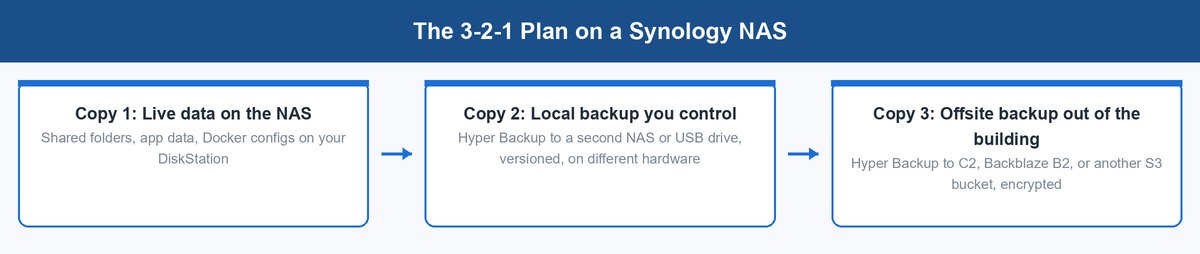
- A real plan follows the 3-2-1 shape. Three copies of your data, on two kinds of hardware, with one copy out of the building.
- Multi-version backup is the ransomware defense. Single-version mode keeps one copy and overwrites it, so an attack gets copied straight into your backup.
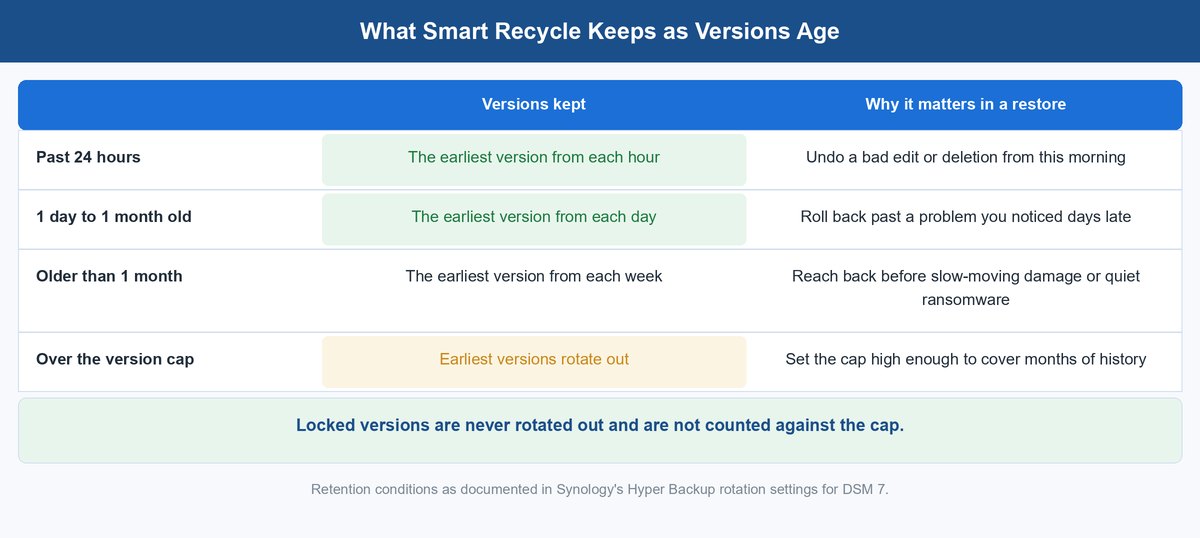
- Smart Recycle keeps hourly versions for a day, daily versions for a month, and weekly versions after that. Old restore points survive without eating your disk.
- The offsite copy can be Synology C2, a Backblaze B2 or other S3 bucket, or a second Synology at another site. Each trades ease against cost and control.
- With client-side encryption on, losing the password and key means permanent data loss. Synology cannot recover it for you.
- A backup you have never restored is a guess. Schedule integrity checks and run a small test restore on a calendar, not in a crisis.
Most people open Synology Hyper Backup, click through the wizard, pick a folder, and call it done. Then the first real test arrives. Ransomware hits, a volume fails, or a finger slip deletes the wrong share. That is when you learn whether you built a backup plan or just a copy. Here is the thesis of this guide: the wizard is the easy part. Design the plan first. Decide what you protect, how many versions you keep, where the local and offsite copies live, and how you prove a restore works. Do that, and the actual clicks take about ten minutes.
A quick note: this post contains an affiliate link or two. If you buy through one, vpod may earn a small commission at no extra cost to you.
Why the Plan Comes Before the Buttons
Hyper Backup is Synology’s backup app for DSM. It packs your data into versioned backup sets, dedupes and compresses them, and ships them almost anywhere. A local folder, a USB drive, a second Synology, an rsync server, S3 storage, or Synology’s own C2 Storage cloud. The tool is genuinely good. The problem is that no wizard can decide your strategy for you. It will cheerfully build a bad plan if you ask it to.
The strategy worth copying is the 3-2-1 rule, and it maps onto a Synology setup cleanly. Copy one is the live data on your NAS. Copy two is a local backup on hardware that is not your NAS. That means a second unit or an attached USB drive. Copy three leaves the building, to a cloud bucket or a NAS at another site. Two copies protect you from a failed box. Only the offsite copy protects you from theft, fire, or ransomware that reaches every disk on your network.
Notice what this plan is really doing. Each copy answers a different failure. RAID answers a failed drive, which is why RAID is not on the list at all. It keeps you running, but it copies your mistakes and your malware in real time. The local backup answers a failed volume or a deleted share with a fast restore. The offsite copy answers the disasters that take the whole building. Design each copy for its failure, and the settings choose themselves.
Three Types of Data and What Each Needs From a Backup
The first wizard screen asks you to pick folders and apps. Most people select everything, which makes every run slow and costly. Or they pick one obvious folder and quietly lose the rest. Sort your data into three piles first.
1 Data You Cannot Re-Create Gets Everything
Family photos, scanned papers, financial records, project files, your Docker volumes, the database behind a self-hosted app. If it exists nowhere else on earth, it goes in the task. This pile gets multi-version treatment and the offsite copy. A useful test: imagine the folder gone. What would it cost to rebuild? If the answer is “impossible” or “weeks,” it is in this pile.
Do not forget app data. Hyper Backup can back up supported packages and their settings next to your folders. A Container Manager setup with a dozen tuned compose files is data you cannot re-create from memory. It just does not feel like “files” day to day.
2 Settings That Took You Weekends Get Backed Up Too
DSM itself can be reinstalled in an afternoon. The setup on top of it took you weekends. User accounts, share permissions, scheduled tasks, firewall rules. Include the system settings in your task. A bare-metal recovery should be a restore, not a dig.
This pile matters more than its size suggests. Settings are tiny, usually megabytes. But they are the difference between a two-hour recovery and a two-week one. Permissions and app settings are exactly the things nobody writes down.
3 Data You Can Re-Download Gets Skipped
Ripped media you still own on disc, Linux ISOs, installers, caches, and anything a service will re-send you. Backing these up is not wrong. It is just costly. Every extra terabyte slows the nightly run, inflates the offsite bill, and stretches integrity checks. A 12 TB media library in the task can double your cloud cost while protecting almost nothing you could not get back.
The honest version of this rule: skip it only if a re-download is truly fine with you. Maybe your library holds edits, curation, or metadata you made yourself. That work is pile-one data, even if the raw files are not.
Three Ways to Make Version History Outlive an Attack
Versioning is where backup plans quietly fail. Ransomware does not announce itself. It encrypts files, and your next scheduled run faithfully backs up the scrambled garbage. Keep only one or two versions, and your good data rotates out of existence within days. The plan needs history that reaches back further than the time it takes you to notice.
1 Refuse Single-Version Mode for Anything That Matters
When you pick a local folder, USB, or rsync target, Hyper Backup offers single-version mode. It stores files in their original format, which sounds friendly. You can browse them on any machine. But Synology’s own destination docs spell out the trade. Older backup data is overwritten. Only one latest version is kept. Encryption and compression are off the table. That is a mirror, and a mirror copies disasters as faithfully as it copies data.
Multi-version mode stores your data in the .hbk format instead. Deduped, compressed, encryptable, with every version you told it to keep. Reading .hbk files takes Hyper Backup, Hyper Backup Vault, or the free Hyper Backup Explorer desktop tool. Synology ships Explorer for Windows, macOS, Ubuntu, and Fedora. You lose casual browsing. You gain the whole point of a backup: the power to go back in time.
2 Let Smart Recycle Shape the History
Keeping every version forever is not a plan either. It is a full disk on a schedule. Rotation solves this, and Smart Recycle is the mode to reach for. Per Synology’s rotation docs, it keeps the earliest version from each hour for the past 24 hours. Between one day and one month old, it keeps the earliest from each day. Older than a month, it keeps the earliest from each week. Recent history stays dense, where restores are most likely. Old history stays reachable, where slow-burn problems hide.
That last band is your ransomware insurance. An attack you notice in week five is past every daily version. A weekly version from week zero is still sitting there. If the built-in bands do not fit, a custom retention policy takes up to seven rules of your own. Then set the version cap high enough that rotation trims by age, not by panic. Cap it too low, and the cap becomes your real retention policy without you noticing.
3 Lock the Versions You Never Want Rotated
Some restore points deserve to be permanent. The version before a DSM major upgrade. The last clean state before you reorganized every share. The year-end close of your business records. The Version List lets you lock specific versions. Locked versions are never removed by rotation. They are also left out when the system counts versions against your cap.
Make locking a habit tied to events, not moods. Before any change big enough to make you nervous, run a manual backup and lock it. That one click turns “I hope the upgrade goes well” into “I can be back on yesterday’s state in an hour.”
Choose the Local Copy That Restores Fastest

Your local target is the copy you will actually use. Cloud restores are bounded by your download speed. A local restore is bounded by hardware you own. Design it for restore speed, and for independence from the main box.
A Second Synology Running Hyper Backup Vault
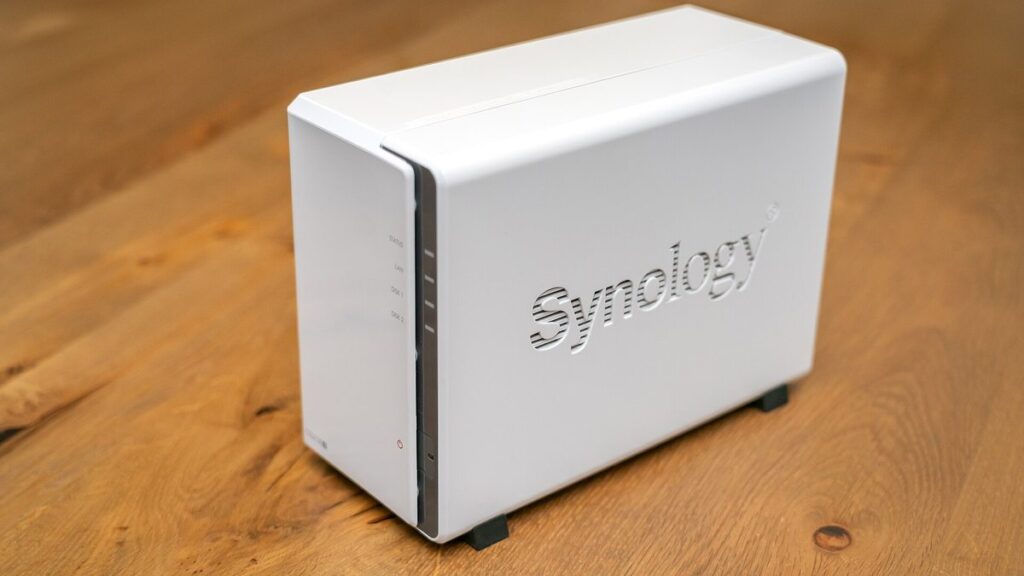
The gold-standard local target is a second Synology on your LAN running the Hyper Backup Vault package. Vault turns the second unit into a purpose-built receiving end. It hosts the .hbk sets, shows the status of every incoming task, and lets you browse versions on the target itself. An older two-bay unit you have outgrown is a perfectly good Vault box. This is the classic second life for a retired NAS.
There is a strategy bonus. A second NAS has its own admin password, its own DSM, and its own disks. Malware that owns a client PC and its mapped drives does not automatically own the Vault box. Pair it with drives you trust. Our teardown of how to pick a NAS hard drive by failure data applies double for the unit holding your last line of defense.
A USB Drive Is a Real Multi-Version Target
No second NAS? A directly attached USB drive is a legitimate target, and it deserves more respect than it gets. Hyper Backup treats it like any local folder. Multi-version mode, rotation, and Smart Recycle all work. The target drive can be formatted ext4, Btrfs, FAT, exFAT, NTFS, or HFS+, per Synology’s docs. Choose multi-version when the wizard asks. The browsable single-version mode is the mirror trap from the last section. A roomy external hard drive dedicated to this job costs less than one recovered-data invoice.
One habit makes a USB target far stronger: unplug it between runs. Or at least power it off outside the backup window. A drive that is offline most of the week cannot be encrypted by an attacker who arrives on Tuesday.
What the Local Copy Cannot Do for You
Be honest about the failures the local copy shares with the original. Same building means the same fire, the same flood, the same burglary, the same surge on the same circuit. Same network means the same blast radius for an attacker who gets admin credentials on your LAN.
That is not an argument against the local copy. It is the argument for its limits. The local copy is your fast, everyday restore. It is not your disaster plan. The disaster plan is the copy that is somewhere else.
Three Ways to Get the Third Copy Out of the Building
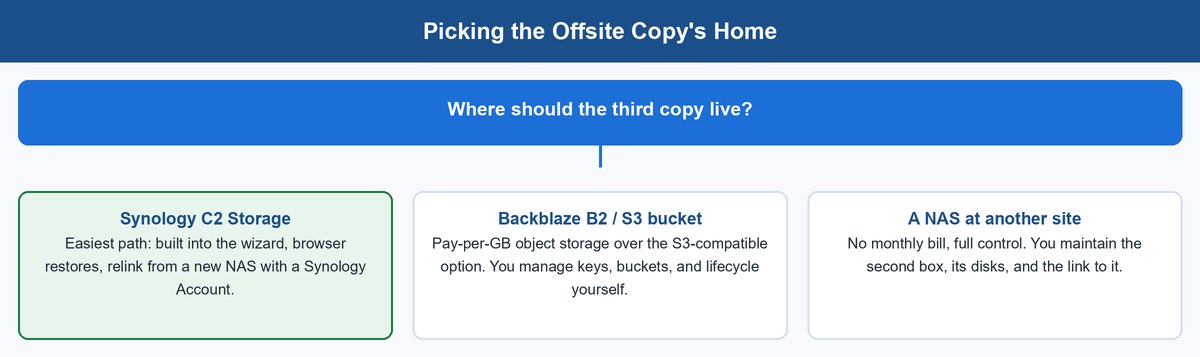
The offsite copy turns a catastrophe into a hassle. Hyper Backup gives you three sensible ways to get one. The right pick depends on how much management you want to own.
1 Synology C2 Storage When You Want the Easy Button
C2 Storage is Synology’s own cloud, and it is the lowest-friction offsite target. It is built into the wizard: sign in with a Synology Account and pick a plan. Per Synology’s docs, you need ports 443 and 8443 open. Encryption choices are locked in when the task is created. The quiet superpower is recovery comfort. You can browse and restore single files from the C2 web portal in a browser. And if your NAS is stolen or destroyed, you can relink a brand-new Synology to the existing C2 task and pick up your history.
The trade-off is a subscription tied to one vendor. You are paying for the integration. For many homes and small offices that is a fair trade. The backup that sets itself up in ten minutes is the one that actually exists.
2 Backblaze B2 or Any S3 Bucket When You Want Control
Hyper Backup’s S3-compatible target opens the door to generic object storage. Backblaze B2 is the best-documented pairing. Backblaze’s own guide walks the exact fields. Point the S3 target at your B2 endpoint. Select signature version v4. Paste your keyID and applicationKey as the access and secret keys. From there it behaves like any Hyper Backup target. Versions, rotation, encryption, and integrity checks are all included.
Why bother? Pay-per-gigabyte pricing that stays cheap at multi-terabyte scale. No bundled plan tiers. A bucket that belongs to you, not to your NAS vendor. The cost is self-management. You create the bucket, guard the keys, and own the lifecycle rules. For a practitioner that is an evening of work. The same S3 recipe works for Wasabi, MinIO on a rented box, or an employer’s object store.
3 Seed the First Backup Over USB, Not the Internet
The first offsite backup is the painful one. A multi-terabyte first upload on a home line can run for weeks. An interrupted month-long upload is soul-destroying. Synology built an escape hatch for exactly this. Create the task. Export the first version to an external drive. Physically move the drive and import it at the target. Then click Relink, and the task continues incrementally from there.
Between a seeded start and block-level incremental runs afterward, the steady-state upload is just your daily change rate. The plan-level lesson: never judge offsite backup by your full data size divided by your upload speed. Judge it by the daily delta. For most NAS workloads, that is a rounding error.
Hyper Backup vs Snapshot Replication Is the Wrong Fight
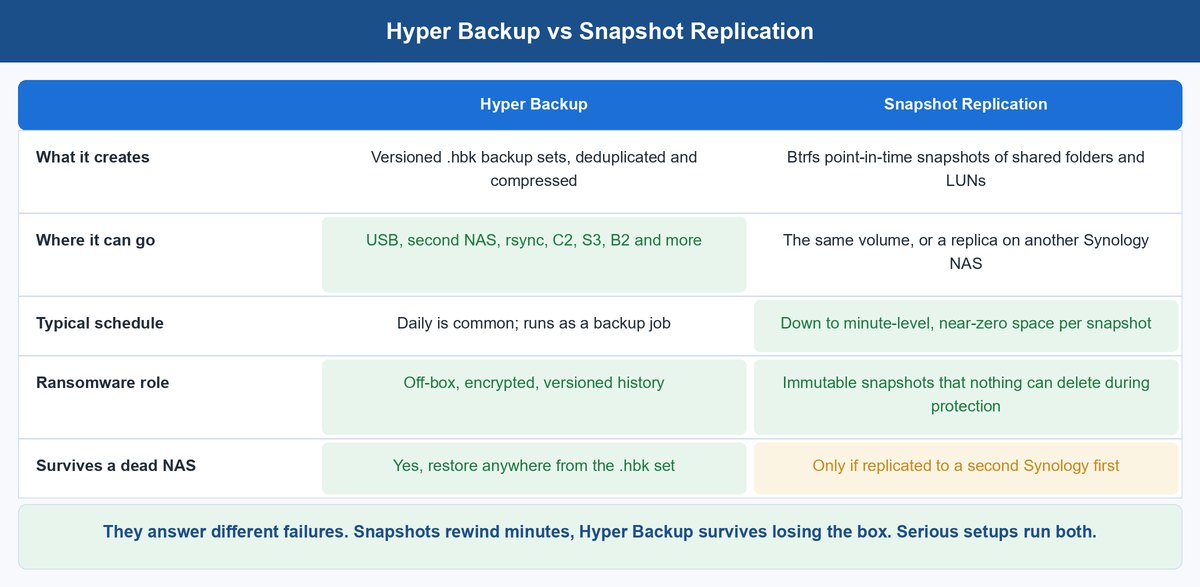
This question comes up constantly, and the honest verdict dissolves it. They solve different problems, and a serious setup runs both. Snapshot Replication takes Btrfs point-in-time snapshots of shared folders and LUNs. Near-instant, nearly free in space, and schedulable at fine granularity. It is the tool that rewinds this morning’s mistake in seconds. If your volumes run Btrfs, snapshots cost almost nothing to run hard. The reason we lean Btrfs on most Synology builds is covered in our ZFS vs Btrfs breakdown.
Snapshots even carry their own ransomware feature. Per Synology’s snapshot docs, you can mark snapshots immutable for a protection period. Synology recommends 7 to 14 days. During that window they cannot be removed by any means, not even by an admin. An attacker who owns your admin account can delete ordinary snapshots. Immutable ones simply refuse.
But a snapshot lives on the same volume as the data. A replica requires a second Synology. Snapshots do not survive the box failing, and they cannot land in a cloud bucket. Hyper Backup is the opposite. Slower and heavier, but its .hbk sets live anywhere and restore anywhere. Run snapshots for the rewind button. Run Hyper Backup for the survival story. The overlap between them is close to zero. That is exactly why “versus” is the wrong word.
Encrypt It, Then Guard the Key Like the Data
Any copy that leaves your building should be encrypted before it leaves. Hyper Backup’s client-side encryption does this properly. Data is encrypted on your NAS with AES-256 before upload. Per Synology’s settings docs, each backup version gets its own randomly generated version key. Since Hyper Backup 3.0.1, that key is protected with ECC Curve25519 asymmetric encryption. Your cloud provider holds ciphertext. Transfer encryption is on automatically either way. Client-side encryption is the setting that protects you if the target itself is breached.
Now the sharp edge. When you enable it, you set a password, and Hyper Backup downloads an encryption key file to your computer. Synology’s docs state it plainly: losing the password and encryption key will lead to permanent data loss. Not “difficult recovery.” Permanent. There is no reset flow, no support ticket, no vendor backdoor. That is exactly what makes the encryption trustworthy. It is also what makes your key handling part of the backup plan.
Prove the Restore Before You Need It
An untested backup is a hypothesis. Hyper Backup gives you two proving tools, and the plan should schedule both. The first is the integrity check. It always verifies the index structure. You can enable data checking on top, which reads backup data to confirm it can really be restored. Data checks take a per-run time limit, so a giant backup can be verified in scheduled slices. A limit of 0 minutes means check everything every run. If a check finds damage, the task enters restore-only state. It stops writing so it cannot make things worse, and existing versions become undeletable.
The second tool is the test restore, and no scheduler will do it for you. Once a quarter, pick a handful of files and restore them from each copy. The local target and the offsite one. Open the files. Confirm they are the version you expected. If the backup is encrypted, run at least one test using only the stored password or key file. Retrieve it from where you keep it, not from memory. A restore drill that skips the key retrieval step is testing half the system.
The Ten-Minute Build Order
Once the decisions above are made, the clicks are almost clerical. Here is the whole build in order:
- Sort the data. Tag each shared folder: irreplaceable, settings, or skippable. Only the first two piles enter tasks.
- Create the local task. Install Hyper Backup Vault on the second NAS, or attach the USB drive. Create a multi-version task to it on a daily schedule.
- Set rotation. Enable Smart Recycle. Set the version cap high enough that months of weekly versions survive.
- Create the offsite task. Point a second task at C2 or your S3 bucket. Enable client-side encryption and store the key file in two safe places immediately.
- Seed it. For a large first backup, export to an external drive and relink instead of uploading cold.
- Schedule integrity checks. Weekly, with data checking enabled and a time limit that fits your window.
- Turn on snapshots. Add a Snapshot Replication schedule with immutable snapshots on your critical Btrfs shares. That is the fast-rewind layer.
- Book the drill. Put a quarterly 30-minute test restore on the calendar. Lock a version before every major change.
Ten minutes was a small exaggeration for step five on a big library. Everything else really is wizard-speed. You did the thinking before you opened the wizard.
Frequently Asked Questions
Can I open a Hyper Backup .hbk file without a Synology NAS?
Yes. Synology’s free Hyper Backup Explorer desktop app reads .hbk backup sets directly on Windows, macOS, Ubuntu, and Fedora. It can browse versions and extract files. For encrypted backups you will need the password or the exported encryption key. This doubles as the best disaster drill: prove on an ordinary PC that your backup opens without any NAS involved.
What happens if I lose my Hyper Backup encryption password and key?
The data in that encrypted backup is gone for good. Synology’s docs say losing the password and encryption key leads to permanent data loss, and there is no recovery path by design. The key file downloads automatically when you create the task. Store it in a password manager plus one offline spot that is not the NAS itself. Then include retrieving it in your restore drills.
Does Synology Hyper Backup work with Backblaze B2?
Yes, through the S3-compatible target. Backblaze’s guide has you enter your B2 endpoint as the server address, choose signature version v4, and use your keyID and applicationKey as the access and secret keys. Then pick a bucket. From there the task supports versions, Smart Recycle rotation, client-side encryption, and integrity checks like any other target.
How many backup versions should I keep?
Enough that the oldest version predates the longest problem you might fail to notice. For most setups that means several months of reach. Smart Recycle makes long reach cheap. It thins history to hourly versions for a day, daily versions for a month, and weekly versions beyond that. A high cap costs far less space than it sounds, and dedupe between versions shrinks the bill further. The setting to avoid is a cap so low that it trims your weekly history.
Is Snapshot Replication a replacement for Hyper Backup?
No, and the reverse is also false. Snapshots are near-instant rewind points on the same volume. They are ideal for undoing recent mistakes, and immutability makes them resist deletion by an attacker. But they cannot reach a cloud bucket, and they do not survive the NAS failing unless replicated to a second Synology. Hyper Backup produces portable, versioned, encryptable backup sets that restore anywhere. Run both: snapshots for speed, Hyper Backup for survival.
How often should I run a backup integrity check?
Weekly is a sensible default, with data checking enabled. Use the built-in time limit so each run verifies a slice of a large backup instead of blocking the box for a day. Over successive weeks the slices cover everything. Pair the automated check with a quarterly manual test restore. The integrity check proves the data is readable. Only a restore proves your whole recovery path works.
About the Author
Elena Brooks
Elena Brooks is the person her group chat texts when something at home stops working or a health trend starts trending. She’s spent years turning that instinct into a job — digging into the research behind everyday questions, calling the experts, and writing up what holds up and what doesn’t. Her beat is wherever curiosity points: kitchens, cars, pets, sleep, money, and the occasional meteor shower.