
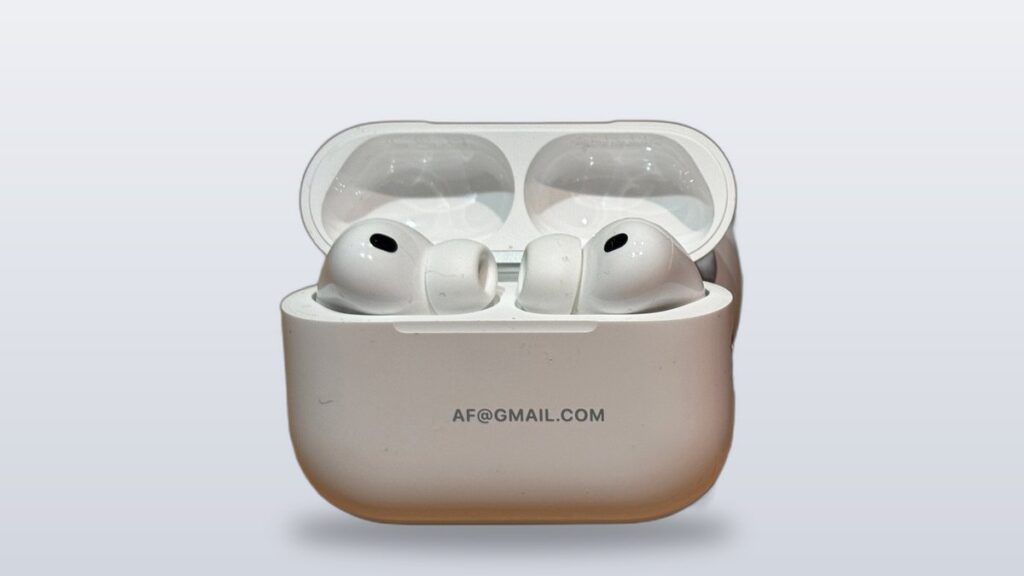
- Most problems fix themselves in under a minute. Turn on Bluetooth, put both buds in the open case next to your iPhone, and restart your phone.
- AirPods Pro 3 have no setup button. To reset them, close the lid for 30 seconds, then open it and double-tap the front three times. The light flashes amber, then white.
- If your sound keeps jumping away, your AirPods are just following you to another device. You can pin them to one device to stop it.
Is your airpods pro 3 not connecting to your phone? Take a breath. This is almost always an easy fix.
Start with the basics. Make sure Bluetooth is on and Airplane Mode is off. Put both earbuds in the case, leave the lid open, and hold it next to your iPhone. Then restart your phone. That clears most problems in under a minute.
If it doesn’t, the cause is usually one small thing: old software, a confused pairing, dirty contacts, a dead case, or the new tap-to-reset move. (AirPods Pro 3 has no setup button anymore, so that one trips up a lot of people.) Don’t worry. We’ll walk through every fix together, easiest first.
Fast Fixes That Solve Most AirPods Connection Failures
Try these in order. Most of the time, nothing is broken. It’s just a small hiccup. So start simple, and don’t jump to a big reset yet.
1 Verify Bluetooth Is Enabled and Airplane Mode Is Off
Your AirPods talk to your phone over Bluetooth. If Bluetooth is off, they can’t show up at all. On your iPhone, open Control Center. Check that the Bluetooth icon is on and the Airplane Mode icon is off. It’s easy to tap Airplane Mode by mistake, and that shuts Bluetooth off too. You can also go to Settings > Bluetooth. Make sure the switch is green and your AirPods Pro 3 say “Connected,” not “Not Connected.”
2 Toggle Bluetooth Off and Back On to Reset It
Sometimes Bluetooth just needs a quick restart. Turn it off in Settings or Control Center. Wait about ten seconds. Then turn it back on. Give your AirPods a few seconds to pop up. This one little step fixes a surprising number of stuck connections.
3 Place Both Earbuds in the Open Case Near Your iPhone
Put both earbuds in the case and leave the lid open. Hold the case within a foot of your unlocked iPhone. With both buds resting and charging, they sync back up, and your iPhone can find them again. If you’ve been carrying one bud loose in your pocket, this step alone often brings both buds back.
4 Restart the Phone, Tablet, or Computer You’re Connecting
Phones and computers build up tiny glitches when they run for days. A restart clears them. Turn your iPhone (or Mac, PC, or Android phone) all the way off. Wait fifteen seconds. Then turn it back on. This is gentle, and it’s much easier than resetting your AirPods.
Why does a restart fix so much? Bluetooth is handled by a small background service on your phone, and like any software, it can get stuck holding onto a bad connection or a half-finished handshake. Restarting reloads that service from scratch, clears its memory, and lets it rediscover your AirPods cleanly. It’s the single highest-value step here precisely because it costs nothing and touches the most common cause — so if you only try one thing before a full reset, make it this.
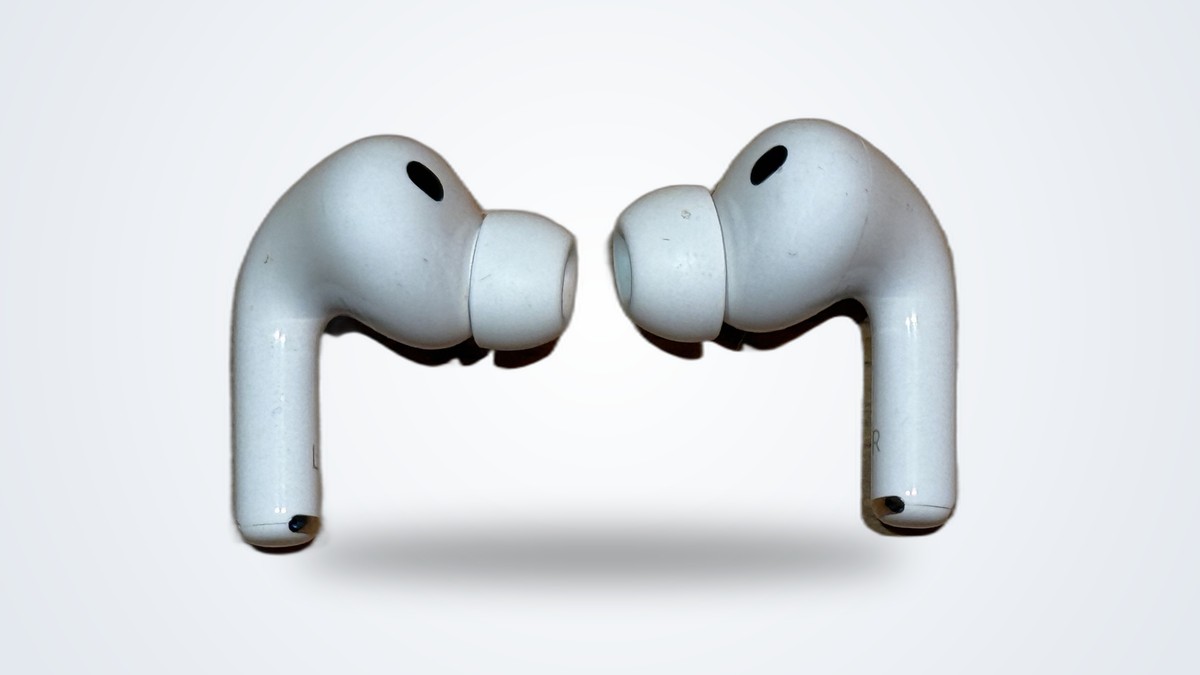
Quick Diagnosis Table Matching Symptoms to Likely Fixes
Not sure where to start? Find your problem below, then try the first fix.
| Symptom | Most likely cause | First fix |
|---|---|---|
| AirPods don’t show up in the Bluetooth list at all | Bluetooth is off, Airplane Mode is on, or the buds are out of the case | Turn on Bluetooth, turn off Airplane Mode, open the lid near your phone |
| They’re listed but say “Not Connected” and won’t link | An old, stuck pairing | Forget This Device, then pair again |
| Only one earbud plays or connects | Dirt on the contacts or mesh, or one bud is empty | Clean the contacts, charge both buds, then reset the pair |
| Sound keeps jumping to another Apple device | Automatic device switching (Handoff) | Set “Connect to This iPhone” to “When Last Connected” |
| The case light won’t light up or the buds never charge | A dead case or dirty contacts | Charge the case with USB-C, clean the contacts |
| Nothing works, even after every step, on an up-to-date device | It might be a hardware fault | Contact Apple Support / warranty |
Keep Your Device Software and AirPods Firmware Current
Sometimes the fix is just an update you already have. Two things can update: the software on your phone, and the firmware inside your AirPods. Let’s check both.
Update iOS, iPadOS, or macOS to the Latest Version
Your AirPods Pro 3 work best when your phone is up to date. Old software can break pairing, or make the buds connect and then drop right away. On your iPhone or iPad, go to Settings > General > Software Update. (On a Mac, it’s System Settings > General > Software Update.) Install anything waiting there. Then try connecting again.
How AirPods Pro 3 Firmware Updates and Why You Can’t Force a Version
AirPods update their firmware on their own, in the background. There’s no “update now” button, and you can’t pick a version. To help an update along, put your AirPods in the case. Plug the case in, or set it on a charger. Keep it near an iPhone or iPad that’s on Wi-Fi. Leave it like that for a while. You can see the firmware version under Settings > Bluetooth > your AirPods, but it’s just for info. Your AirPods decide when to update. So ignore any guide that tells you to “flash” a certain firmware. That’s not how AirPods work.
Here’s the practical part most people miss: firmware updates almost never happen while you’re actively wearing the buds. Apple pushes them when the AirPods are idle, charging, and within Bluetooth range of an internet-connected iPhone or iPad. So the reliable trick is to leave them in the case on a charger overnight, right beside your phone. Check the version number the next morning, and you’ll often find it quietly climbed to the latest build without you doing a thing.
Deeper Fixes for When the Connection Still Fails
Still stuck? Okay. Now we go a little deeper. We’ll clear out the old pairing, do a real reset, and rule out dirt or a dead case.
1 Forget the Device and Re-Pair From Scratch
A broken pairing record will keep failing, no matter how many times you try. Clearing it gives your AirPods a fresh start.
- Open Settings > Bluetooth and tap the info (i) button next to your AirPods Pro 3.
- Tap “Forget This Device,” then confirm.
- Put both buds in the case and close the lid for a few seconds.
- Open the lid and hold the case next to your unlocked iPhone. When the setup screen pops up, tap “Connect” and follow along.
Your AirPods save their pairing in iCloud. So when you forget them on one device, they’re forgotten on your other Apple devices too. No problem. You pair once, and they come right back.
2 Hard Reset AirPods Pro 3 Using the New No-Button Method
This is the step most people get wrong, so let’s go slow. Older AirPods Pro had a small button on the back that you held for about 15 seconds. AirPods Pro 3 (like AirPods 4) has no button at all. Instead, you tap the front of the case.
- Put both earbuds in the case and close the lid.
- Wait 30 seconds.
- Open the lid, and keep it open.
- Double-tap the front of the case three times. The light flashes amber, then white. That’s how you know the reset worked.
Now your AirPods are back to factory settings, like new. Hold them next to your iPhone and set them up again. Want the official steps and what each light color means? See Apple’s guide to resetting your AirPods. (Quick guide: green means fully charged, amber means not fully charged, white means ready to set up, and a slow blinking amber means there’s a problem to fix.)
3 Clean the Charging Contacts and Speaker Mesh of Debris
Earwax, lint, and pocket fuzz build up on the metal contacts inside the case and on the little speaker mesh. That gunk can block charging. And a bud that can’t charge can’t stay connected. Wipe each earbud and the inside of the case with a dry, lint-free cloth. Use a clean, dry, soft brush to gently sweep out the mesh and the contact points. Don’t use anything sharp or metal. And don’t soak them. These buds resist sweat and water (IP57), but pushing liquid into the contacts can cause rust.
Pay special attention to the tiny gold contact pins at the bottom of each bud’s stem and the matching points inside the case — that’s where the charge actually passes. A single strand of pocket lint bridging or blocking those pins is enough to stop a bud from charging, which then reads to your phone as a connection drop. A wooden toothpick or a dry cotton swab is perfect for lifting debris out of those little wells without scratching the metal.
4 Confirm the Charging Case Is Actually Holding Power
If the case battery is empty, the buds never charge, and they drop the second they run out. Plug the case into power with its USB-C cable. Leave it for at least 15 to 20 minutes. Then open the lid near your iPhone to check the charge. If the light stays dark even while it’s plugged in, the problem might be a dirty port, a bad cable, or a faulty case. Try a different cable and charger before you give up on it.
Fixing When Only One Earbud Won’t Connect
One quiet earbud is a different problem from “nothing works at all.” Usually it’s just dirt or a low charge. And it almost always clears up with a quick clean and a resync.
1 Re-Seat the Earbud and Inspect It for Debris
Take the quiet bud out. Look closely at its contacts and mesh. Brush away any wax or lint with a dry brush. Set it back in the case and make sure it sits snugly against the case pins. A bud that rides a little high won’t touch the contacts. Let it charge for a few minutes, then test both buds together.
2 Reset Both Earbuds to Rebalance the Pair
If one bud still won’t join after charging, the two have lost sync. Do the full reset from above: lid open, double-tap the front three times until the light flashes amber, then white. Then pair again. A reset makes both buds sign back up as a matched pair. That’s the reliable cure for a bud that keeps dropping out.
Automatic Device Switching Looks Like a Bug but Isn’t
A lot of “won’t connect” moments aren’t a problem at all. Your AirPods are just doing their job: following your sound from one Apple device to another.
What Automatic Device Switching Actually Does
When your AirPods Pro 3 are tied to your Apple ID, they switch on their own. Start a video on your iPad, and the sound can slip away from your iPhone mid-task. To your iPhone, it looks like the AirPods “disconnected.” Really, they just hopped to another device on the same account.
How to Turn Off Automatic Device Switching
Pin your AirPods to the one device you care about:
- On that device, open Settings > Bluetooth and tap the info (i) button next to your AirPods.
- Tap “Connect to This iPhone” (or iPad/Mac).
- Pick “When Last Connected to This iPhone” instead of “Automatically.”
Now your AirPods stay put until you pick another device yourself. No more surprise disconnects.
Connecting AirPods Pro 3 to Mac, Windows, or Android
AirPods Pro 3 are normal Bluetooth earbuds. So yes, they work with non-Apple gear too. You just get fewer of the smart extras.
Pairing AirPods Pro 3 With a Mac
If you’re signed in with the same Apple ID, your AirPods often show up on their own in the Control Center sound menu. Just click them to connect. If they don’t show up, open System Settings > Bluetooth, put the buds in the case with the lid open, and pick the AirPods from the list. A quick Mac restart fixes most stubborn pairing trouble.
Pairing AirPods Pro 3 With a Windows PC
Open the case lid. Double-tap the front of the case until the status light flashes white. That puts your AirPods in pairing mode (it’s the same tap that replaced the old button). On your PC, go to Settings > Bluetooth & devices > Add device > Bluetooth. Wait for “AirPods Pro 3” to show up, then pick it. You’ll get plain stereo sound and the mic, but not the Apple-only extras.
Pairing AirPods Pro 3 With an Android Phone
It works just like Windows. Lid open, double-tap the front until the light flashes white, then open your Android Bluetooth settings and tap the AirPods to pair. You’ll get good wireless sound. But extras like automatic device switching, hands-free Siri, personalized spatial audio, and Find My are limited or gone off Apple’s gear. If the buds won’t show up, check that they’re not still connected to a nearby iPhone. Disconnect there first, since they can only hold one live connection at a time.
When It’s a Hardware Fault and Time to Call Apple
If you’ve truly tried every software and cleaning fix, the hardware itself might be the problem. And a guide can’t fix broken parts.
Signs You’ve Reached an Unfixable Hardware Fault
Think hardware when a clean reset, a forget-and-pair, a good cleaning, and a fully charged case all fail, on a phone that’s fully up to date. Same goes if one bud never charges or connects no matter what you do. A light that stays dark while plugged in, or buds that won’t reset to that amber-then-white flash, point the same way.
One more thing worth ruling out before you blame the buds: an overheated case or phone can throttle charging and Bluetooth. If your case gets warm and refuses to charge, the same overheating rules that explain why your phone gets hot while charging apply here — let everything cool to room temperature, off the charger and out of direct sun, then try one more time before you book a repair.
Warranty, AppleCare, and How to Get Apple Help
Your AirPods Pro 3 come with a one-year limited warranty, and you can extend it with AppleCare. So don’t go buying spare parts before you check your coverage. Use Apple’s own help steps first. Start with how to restart, unpair, or reset your AirPods. If the trouble sticks around, contact Apple Support or book a Genius Bar visit. A real fault is exactly what the warranty is for.
Frequently Asked Questions
How do I reset AirPods Pro 3 when there’s no setup button?
Put both buds in the case and close the lid for 30 seconds. Then open the lid and double-tap the front of the case three times. The light flashes amber, then white. That tells you the reset worked. AirPods Pro 3 dropped the old setup button, so it’s a tap now instead of the 15-second button hold you used on AirPods Pro 1 and 2.
Why do my AirPods Pro 3 connect to the wrong device?
That’s automatic device switching (Handoff). Your AirPods are just following your sound between your Apple devices, so it’s a feature, not a fault. To stop it, go to Settings > Bluetooth, tap the info button next to your AirPods, choose “Connect to This iPhone,” and pick “When Last Connected to This iPhone.”
Can AirPods Pro 3 connect to Android and Windows?
Yes. They act like normal Bluetooth earbuds. Open the case lid, double-tap the front until the status light flashes white, then pick the AirPods in your device’s Bluetooth settings. Apple-only features like spatial audio personalization, automatic switching, and Find My are limited or gone on non-Apple devices.
How do I update AirPods Pro 3 firmware?
You can’t force a certain version. Firmware updates install on their own when your AirPods are charging and near an iPhone or iPad that’s on Wi-Fi. Just leave them in the case near your phone for a while. There’s no manual “update now” button and no way to pick a build.
Why is only one AirPod Pro 3 connecting?
Usually one bud has dirt on its charging contacts or mesh, has run out of charge, or has lost sync with its partner. Clean the contacts and mesh with a dry, soft brush, let both buds charge in the case, and if it keeps happening, reset the pair so both buds sign back up together.
When should I contact Apple about AirPods Pro 3 that won’t connect?
If a clean reset, a fresh pairing, a good cleaning, and a known-charged case still won’t connect on a fully updated device, you might have a hardware fault. AirPods Pro 3 carry a one-year limited warranty that you can extend with AppleCare, so contact Apple Support before buying replacement parts.
About the Author
Elena Brooks
Elena Brooks is the person her group chat texts when something at home stops working or a health trend starts trending. She’s spent years turning that instinct into a job — digging into the research behind everyday questions, calling the experts, and writing up what holds up and what doesn’t. Her beat is wherever curiosity points: kitchens, cars, pets, sleep, money, and the occasional meteor shower.