
- Adoption fails when the device cannot finish its inform handshake with the controller over TCP port 8080. A factory reset does not repair that path. That is why resets keep failing.
- The fastest check is SSH. Log in to the device with the factory defaults (ui / ui, or ubnt / ubnt on older gear) and run
infoto see the inform URL the device is really using. - Cross-VLAN adoption is the top cause on self-hosted setups. Layer 2 discovery stops at the subnet edge. You must hand the device the controller’s address with
set-inform, DHCP option 43, or a DNS record namedunifi. - A device that says Managed by Other is loyal to a controller that no longer exists. The reset button alone does not clear that bond on the controller side.
- A controller in Docker or behind NAT can advertise an address the devices cannot reach. The Inform Host Override setting fixes the loop where a device adopts and then drops.
- If the device shows Disconnected but your WiFi still works, do not reset it. The device keeps its last config and keeps moving traffic. Only the management link is down.
You plugged in the new access point. It showed up, you clicked Adopt, and UniFi threw the two words every admin learns to hate. So you did what the top search results said. You factory reset the device. You restarted the controller. It still says unifi adoption failed. Here is the part those answers skip. Adoption is a conversation, not a device state. The device has to reach your controller on TCP port 8080 and get a valid answer back. A reset wipes the device’s memory. It does not change one thing about the path between the device and the controller. If that path is broken, you can reset all day and nothing will move.
This post walks the order a senior network engineer would use on a callout. Not a pile of symptoms. An order, from the most likely cause to the least. Each cause comes with a way to confirm it before you touch anything, and the exact command or setting that fixes it.
We earn an affiliate commission if you buy through links on this page, at no extra cost to you. It does not change our advice.
Why the Factory Reset Keeps Changing Nothing
Think about what a factory reset really does. It erases the device’s stored config, its SSH login, and its memory of any controller. That is the whole list. It does not move the device to a new subnet. It does not open a firewall rule. It does not fix a DNS record, correct a DHCP option, or teach your Docker container to hand out the right address. All of those live outside the device. In practice, that is where most adoption failures live too.
Ubiquiti’s own docs quietly agree. In the official device adoption guide, the factory reset sits at the bottom of each scenario, labeled a last resort. The checks above it are all about reach: make sure TCP 8080 and UDP 10001 are open between the device and the UniFi host. The order of that list is the whole lesson. The vendor treats the network path as the prime suspect. The device is the alibi.
There is a hidden cost to reflex resets, too. Every reset erases the one clue that would have named the problem: the device’s current inform URL and its status. Reset first and you are questioning a witness with amnesia. So before anything else, we are going to read that clue.
How UniFi Adoption Actually Works Behind the Scenes
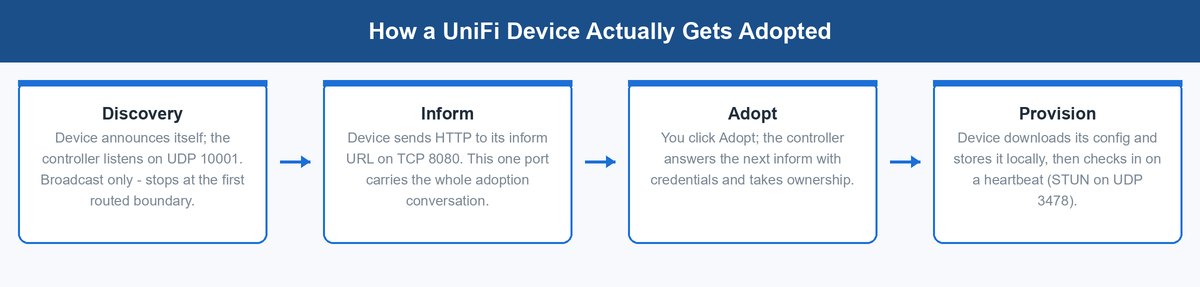
Adoption is a four-step handshake. Every failure cause in this post breaks exactly one step. Once you can name the broken step, the suspect list shrinks from six to two or three.
Step one is discovery. A fresh device announces itself. The controller listens for those shouts on UDP port 10001. Discovery rides on broadcasts, so it works on the local Layer 2 network and dies at the first routed boundary. That is why a device on VLAN 20 is invisible to a controller on VLAN 1, even when both can ping the gateway.
Step two is the inform. The device sends HTTP to its inform URL, which by default looks like http://<controller-ip>:8080/inform. The official port reference lists TCP 8080 as the device-to-app channel. This one port carries the whole adoption talk. If the inform cannot get there, or the answer cannot get back, adoption fails no matter what discovery found.
Step three is the exchange. You click Adopt. The controller answers the device’s next inform with login details and takes ownership. Step four is provisioning. The device downloads its config and stores it on board. From then on it checks in on a heartbeat, and UDP 3478 joins the party, carrying STUN traffic the same port reference marks as required for device adoption and status. Keep that port in mind. It explains the strangest symptom in this post: the device that works fine while calling itself disconnected.
Run These Two Checks Before You Change Anything
The whole diagnosis starts with two questions. They take about ninety seconds, and they decide which of the six causes you are chasing.
First, find the device’s IP address. Check your DHCP leases or the client list on your gateway. Ubiquiti’s connectivity troubleshooting guide flags one address as a giant clue. If the device sits at 192.168.1.20, that is the fallback address a UniFi device gives itself when no DHCP answer ever came. A device on the fallback IP has a cabling or VLAN problem, not an adoption problem. Fix the port profile or the untagged network first. Nothing else in this post works until DHCP does.
unifi. Ubiquiti’s zero-touch provisioning. Whichever answers first wins the device. One stale option 43 entry can silently outbid the correct set-inform you just ran.Second, ask the device what it believes. SSH into it at the IP you found. On a factory-fresh device, the official debug and SSH guide gives the login: username ui, password ui, or ubnt / ubnt on older gear. On an adopted device, the login is the random set shown under Device SSH Authentication in your Network app’s device settings. Once in, run info. The output shows the exact inform URL the device is trying, plus a status line that says how far the handshake gets. That line usually names your cause. A wrong IP in the URL points at cause two or four. A refused connection points at cause one or five. A note that another controller manages the device points straight at cause three.
The Six Real Causes of a Failed UniFi Adoption
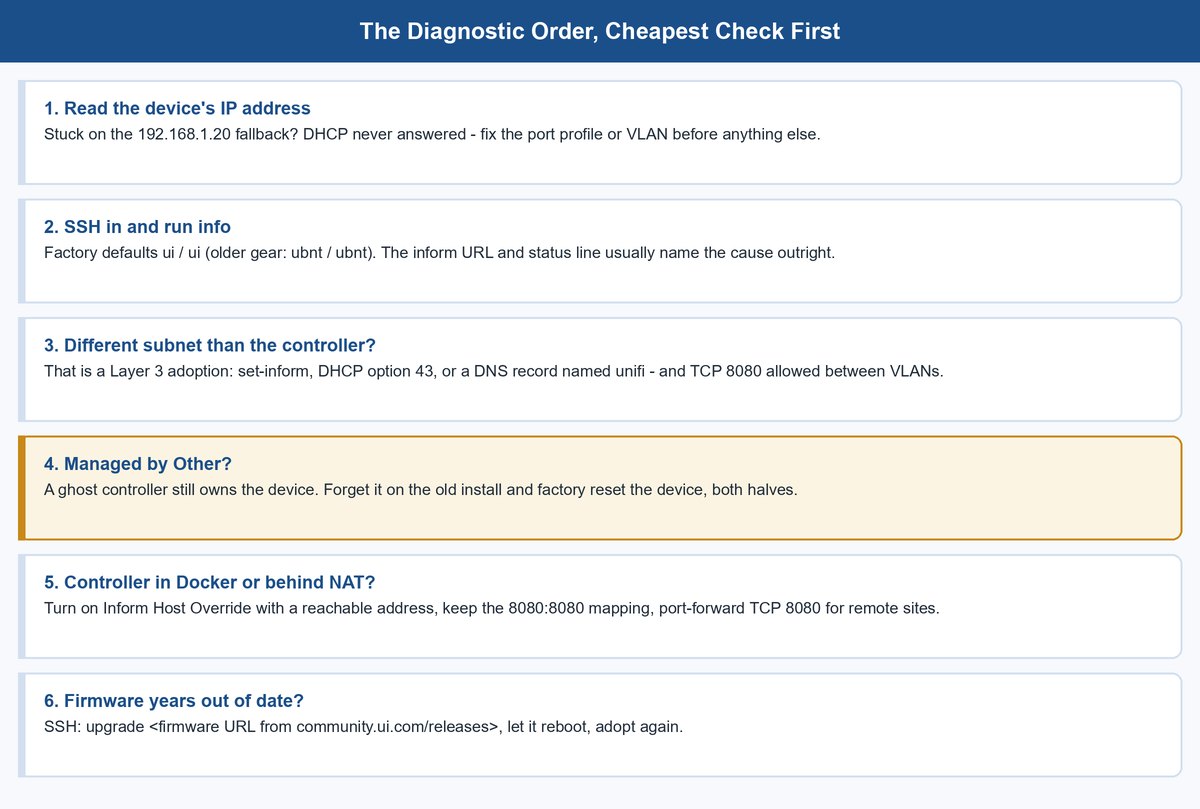
Here they are, ranked by how often they turn out to be the answer. Work down the list in order. Confirm before you fix, so you never fix the wrong thing.
1 The Device and the Controller Sit on Different VLANs or Subnets
This is the number one cause on any network that has outgrown one flat subnet. It is almost guaranteed the first day you move your management gear onto its own VLAN. Discovery runs on Layer 2 broadcasts, and broadcasts do not cross a routed boundary. Your controller never hears the new device at all. Ubiquiti’s Layer 3 adoption guide states the rule in one line: the device and the app must have unrestricted connectivity over TCP port 8080.
Confirm it by comparing addresses. The device pulled 192.168.20.14. Your controller lives at 192.168.1.10. That gap means you are doing a Layer 3 adoption, whether you meant to or not. SSH is the fastest fix. Log in to the device and run set-inform http://192.168.1.10:8080/inform with your controller’s real IP. The official adoption guide adds a step almost everyone misses: you may need to run the command a second time after the device first appears in the app. The device shows up, you relax, and it never finishes. Run it again.
Two more things must be true. Inter-VLAN routing has to allow the traffic. And no firewall rule may block TCP 8080 between those subnets. If your gateway is a third-party firewall, this is where its rules earn their keep. We walked the two big open-source options in our OPNsense vs pfSense breakdown; either one needs an allow rule for 8080 between the device VLAN and the management VLAN. Want a fleet-wide fix instead of a per-device one? Skip ahead to cause four and set DHCP option 43 or the DNS record once. Every future device then finds the controller on its own.
2 The Inform URL Points at a Controller That Moved
Controllers move. The self-hosted server gets a new IP after a router swap because nobody reserved its lease. The old PC dies and the Network app lands on a new machine one address over. The devices, meanwhile, are patient creatures. Each one keeps sending its inform to the last URL it was given, forever. The controller at the new address hears nothing, and every adoption attempt dies in the same silence.
Confirm it with the info output from the SSH session you already opened. The inform line reads http://192.168.1.47:8080/inform while your controller now answers at 192.168.1.10. That mismatch is the whole diagnosis. Nothing is broken. Everyone is mailing letters to your old house.
The fix is the same set-inform command, pointed at the current address, repeated once more after the device appears. Then make a promise to your future self: give the controller a fixed address. A DHCP reservation is enough. Do it the same day, because every device you adopt after this inherits the exact same failure the next time the controller’s lease changes.
3 A Ghost Controller Still Owns the Device
If the app shows the device as Managed by Other, or info names a controller you do not recognize, you have a loyalty problem. The device was adopted before, by a controller that may no longer exist. A previous owner’s setup, if you bought the gear used. A test install you deleted months ago. A console you factory restored. Ubiquiti’s reset documentation explains the trap: the device still considers itself managed by the old app, so the new one cannot take ownership.
Here is the detail that catches even careful people, straight from that same guide. The physical reset button does not remove the device from the apps it was adopted to. A reset clears the device’s half of the bond. If the old controller still exists, its half survives, and it can keep trying to reclaim the hardware. The clean break needs both halves. Forget the device in the old app’s Manage section, if that app still runs anywhere. Then hold the device’s reset button for 5 to 10 seconds while it stays powered, until the LED signals the restore.
One more ghost deserves a name, because Ubiquiti calls it out for self-hosters. Some people install the Network app on a second computer, thinking it is just a viewer. It is not. Every install is a full, separate controller, and the accidental one will fight the real one for every fresh device on the network. Manage from a browser pointed at the one server’s address. Keep exactly one instance alive.
4 DHCP Option 43 or the DNS Record Is Feeding a Stale Address
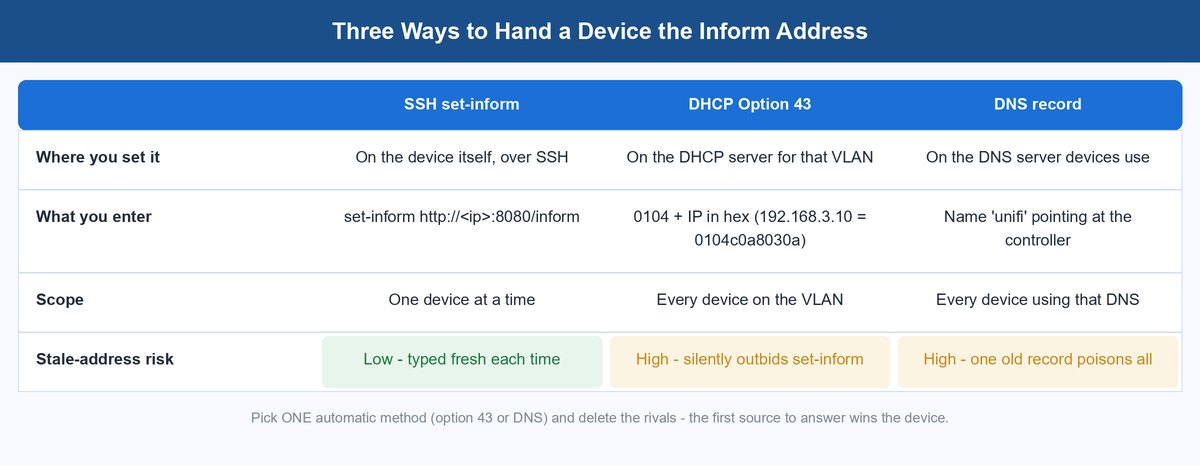
This is the sneaky twin of cause two. Option 43 and the DNS method exist to automate adoption. The DHCP lease itself, or a DNS name, tells every new device where the controller lives. Set once, they are wonderful. Set once and forgotten, they become a poisoned well. They keep announcing an address the controller left years ago, and they outrank your patience. Remember the cycle from earlier: the first inform source to answer wins the device.
Confirm it at the sources themselves. On a UniFi gateway, the Layer 3 guide points to the exact field: Settings, then Networks, then the VLAN, then Option 43 Application Host Address. On a third-party DHCP server, option 43 is usually hand-coded in hex, and the format is easy to fumble. The official coding starts with 0104, then the controller IP in hex. So 192.168.3.10 becomes 0104c0a8030a. One swapped pair of hex digits sends every device on that VLAN to an address that does not exist. For the DNS route, check what the name unifi resolves to from the device’s subnet. That is the hostname UniFi devices try.
The fix is to correct or delete the stale entry, then power-cycle the device or run set-inform once to hurry it along. While you are in there, pick which one mechanism owns this job and remove the others. Extra inform sources sound like a safety net. What they really build is a race with several finish lines, and you will be back here the next time any one of them goes stale.
5 Your Controller Lives in Docker or Behind NAT
Self-hosting the Network app in a container is popular for good reason, and it makes the most confusing failure of the lot. The device appears, starts adopting, then falls back to disconnected or adoption failed, over and over. The mechanism is an honest lie. During the handshake, the controller tells the device the address to keep reporting to. A container knows itself by its container IP, an address nothing outside Docker can route to. The device dutifully sends its next inform into the void.
The linuxserver.io image docs, the de facto standard for UniFi in Docker, give the fix. In the app, go to UniFi Devices, then Device Updates and Settings, enable Inform Host Override, and set the inform host to an address your devices can really reach: the Docker host’s LAN IP or a DNS name for it. The same docs carry a second sharp rule: keep the port mapping at 8080:8080. Remap it on one side only and, in their words, devices will first communicate and then break after. Map UDP 3478 and UDP 10001 too, so STUN and discovery survive the container wall.
The NAT version shows up when you host the controller at another site or in the cloud. The Layer 3 guide splits it cleanly. If the controller’s host has its own public IP, just make sure nothing upstream blocks TCP 8080. If it sits behind a gateway, you must port-forward TCP 8080 from that gateway to the controller’s inside address. And one honest limit, stated flatly in the official guide: if the controller’s site is double-NATed, with a private address on the WAN side, remote adoption will not work. The fix there is a talk with the ISP or a VPN between the sites, not another hour in the firewall.
6 The Firmware Is Too Old to Speak to Your Controller
A device that sat in a warehouse for three years wakes up speaking an old dialect. Ubiquiti says so directly in its advanced updating guide, which lists this exact case: a device that is not discovered or cannot be adopted because it shipped with outdated firmware. The handshake fails not because the path is broken but because the two ends no longer agree on the language. The same mismatch runs in reverse when your self-hosted server is years behind. The current Network app line is the 10.x series, with 10.6.106 the official release on Ubiquiti’s release feed as of this writing. A brand-new device pointed at an ancient server can fail in the same shrugging way.
Confirm it by elimination and version math. The device has a good IP on the right subnet. The inform URL is correct. No ghost owns it. The controller answers on 8080 from the device’s network. What is left is firmware. Check the device’s shipped version against the release feed. A gap of several major versions is your answer.
The fix runs over the SSH session you already know. Copy the firmware link for your exact model from community.ui.com/releases. Then run upgrade followed by that URL on the device. Ubiquiti is candid that SSH updating is a workaround for exactly this case, not an everyday tool. Treat it as the escape hatch it is: upgrade, let the device reboot, adopt normally. Keeping the server current closes the other half; the official guide for updating self-hosted UniFi Network Servers covers the clean path per platform.
When UniFi Says Disconnected but Your Network Still Works
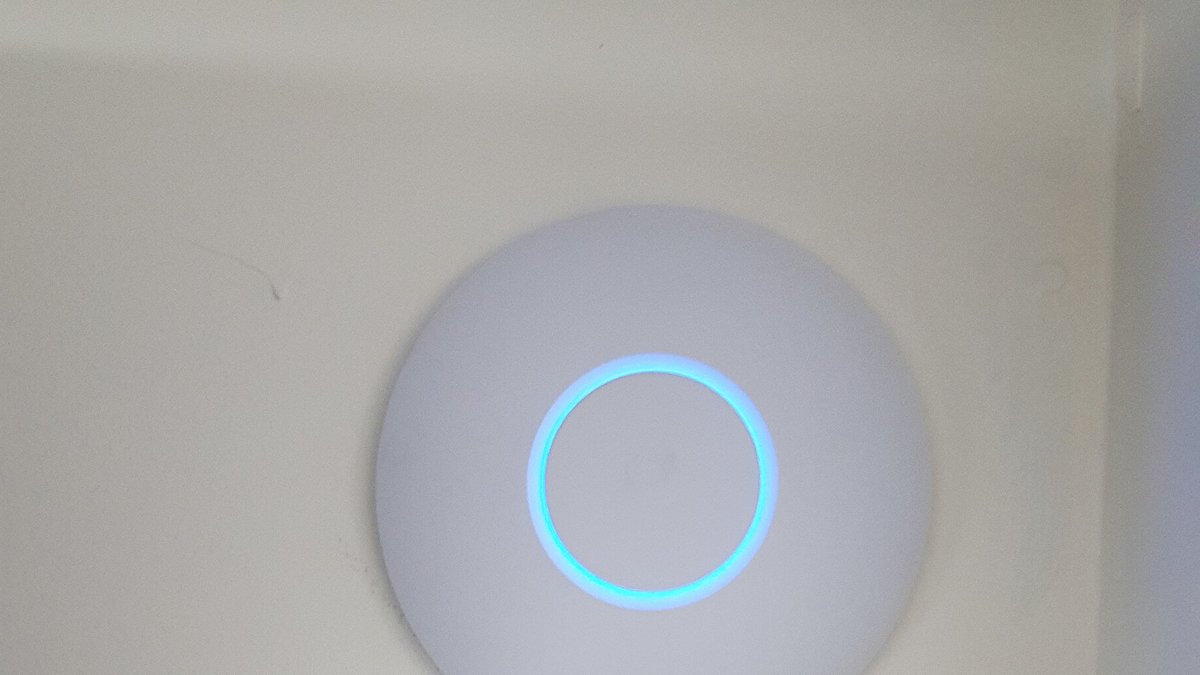
This one earns its own chapter because the symptom looks like a contradiction. The dashboard shows the access point as Disconnected. The WiFi it broadcasts works fine. Your laptop is literally using the “disconnected” AP to load the dashboard that calls it disconnected. People reset devices over this every day. It is almost always the wrong move.
The paradox resolves once you split the two jobs the box does. Management and traffic are separate planes that merely share hardware. During provisioning, the device stored its full config on board: SSIDs, VLANs, radio settings, all of it. It does not need the controller’s permission to keep moving packets. When the heartbeat to the controller dies, the device keeps doing its last known job, forever if it must. Disconnected is a statement about the management talk. Nothing more.
So diagnose the management path, not the device. Is the controller actually running? A self-hosted server on a desktop that went to sleep produces exactly this fleet-wide symptom. So does a controller whose IP changed, which is cause two in a different coat. Is TCP 8080 still open between the device’s VLAN and the controller, after your last firewall cleanup? And is UDP 3478 blocked? The port reference lists STUN as required for device status, and a blocked STUN port is famous for half-alive states: devices flapping between Connected and Disconnected while passing traffic the whole time.
Make Adoption Boring Forever
Every cause in this post traces to one root: the controller’s address was allowed to drift. The prevention list is short and permanent. Reserve the controller’s IP in DHCP the day you build it. Pick one automatic inform source, option 43 or the DNS record, point it at that reserved address, and delete any rivals. Turn on scheduled controller backups. A ghost-controller mess is then solved by restoring the backup, which is the first option Ubiquiti’s own docs offer for reclaiming gear, instead of resetting a building full of devices.
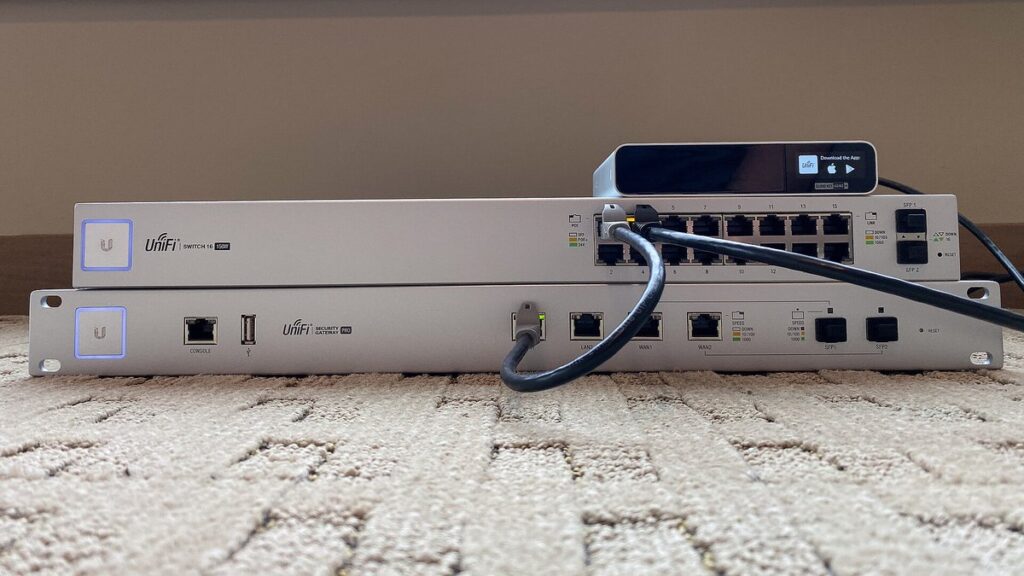
And be honest about the hosting. If your controller runs on a gaming PC that sleeps, or in a container you rebuild monthly, you picked the two failure modes this post spent the most words on. A dedicated always-on home for the Network app, like the UniFi Cloud Key Gen2 Plus, removes the sleeping-host and container-address problems in one move. It is the small black unit racked on top of the switch in this post’s opening photo, doing exactly that job. A UniFi gateway with the app built in goes one step further: the controller’s address becomes the gateway’s address, which every device can reach by definition. If you are weighing that route, our guide to choosing a UniFi Cloud Gateway sorts the current lineup by the networks they actually fit.
Frequently Asked Questions
What does the UniFi adoption failed error actually mean?
It means the adoption handshake did not finish. The device and the UniFi Network app could not hold a full conversation over TCP port 8080. It does not mean the device is broken, and it usually does not mean the device is misconfigured either. The cause almost always sits on the path between them: a routed boundary with no inform address set, a stale inform URL, a firewall rule, a NAT or Docker wall, or a controller that moved. Work the six causes in this post in order.
How do I use set-inform over SSH to adopt a UniFi device?
SSH into the device and run set-inform http://<controller-ip>:8080/inform, using your Network app’s reachable address. That is the exact syntax in Ubiquiti’s Layer 3 adoption guide. Then adopt the device in the app. If it stalls at adopting, run the same command once more; the official guide notes it may need repeating after the device first appears. Cloud-hosted setups can copy the exact inform URL from the UniFi dashboard instead of building it by hand.
What are the default SSH credentials for an unadopted UniFi device?
Factory-default UniFi network devices use username ui and password ui. Older hardware uses ubnt / ubnt. Both come from Ubiquiti’s official SSH docs. Consoles and gateways use root with those same passwords. Once a device is adopted, the defaults stop working. The controller assigns random credentials, which you can view in the Network app under Device SSH Authentication in the device settings.
Which ports need to be open for UniFi adoption to work?
Three matter most, per Ubiquiti’s required ports reference. TCP 8080 carries the inform channel, which is adoption itself. UDP 10001 carries device discovery. UDP 3478 carries STUN. On one flat network they just work. Across VLANs, you need TCP 8080 allowed between the device’s network and the controller’s. Across the internet, you need TCP 8080 reachable from the device’s site, usually by port forwarding. In Docker, map all three, and keep 8080 as 8080 on both sides.
Why does my UniFi device say Managed by Other?
The device was adopted before by a different install of the UniFi app, possibly one that no longer exists, and it still treats that controller as its owner. Ubiquiti lists three ways out: restore the old controller from a backup that held the device, factory reset the device and adopt it fresh, or reassign it through the UniFi mobile app as the original owner. If the old controller still runs anywhere, also Forget the device there. The physical reset button alone does not remove the device from the old app’s inventory.
Why does my UniFi device show as disconnected but keep working?
Because the config lives on the device, not on the controller. After provisioning, an access point or switch stores its settings on board and keeps forwarding traffic even if it never reaches the controller again. Disconnected only means the management heartbeat is failing. Common reasons: the controller is off or asleep, its IP changed, or TCP 8080 or UDP 3478 got blocked. Fix the management path. Do not factory reset a device in this state, or a cosmetic problem becomes a real outage.
Do I need port forwarding to adopt a UniFi device at a remote site?
Only in one layout: your controller sits behind a gateway and has no public IP of its own. Then Ubiquiti’s guidance is to port-forward TCP 8080 from the gateway to the controller’s inside address. If the controller host has its own public IP, you just need the path unblocked. If the two sites share a VPN, the device counts as local and no forwarding is needed. The one dead end is double NAT at the controller’s site, where even the WAN address is private. Official guidance says that will not work without the ISP’s help.
About the Author
Elena Brooks
Elena Brooks writes about the infrastructure decisions that are hard to reverse – storage layouts, network gear, and the hardware small teams actually run. She reads the vendor release notes and the project histories so you don’t have to, quotes them directly, and says plainly when a product’s reputation and its shipping record disagree.