

Is your Meta Ray-Ban Display Neural Band not working? Nine times out of ten it is one of three things: a dead or mis-seated charge, a Bluetooth/pairing hiccup, or the band simply being worn too loosely for its muscle sensors to read you. Start with the 60-second force restart of both the band and the glasses, make sure the band is charging on its own magnetic charger (not the glasses case), and confirm it is snug on your writing wrist just past the wrist bone. The full symptom-by-symptom playbook below walks you through every fix in the right order, from a black display to the dreaded “serial number not recognized” charging error.
Key Takeaways
- Most Neural Band failures are power, pairing, or fit — a force restart (hold the band button ~8 seconds until the LED fades) clears the majority of glitches without erasing anything.
- The band charges on its own magnetic charger plugged into a wall adapter; plugging its USB-C cable into the glasses charging case will not charge it.
- Gestures only register when the band is worn correctly — on your dominant (writing) hand, just past the wrist bone, clasp snug, with the line facing you.
- A factory reset (hold the band button ~16 seconds until it flashes white and amber) is the last resort; if charging still fails or the serial number is not recognized, it is a hardware issue for Meta Support.
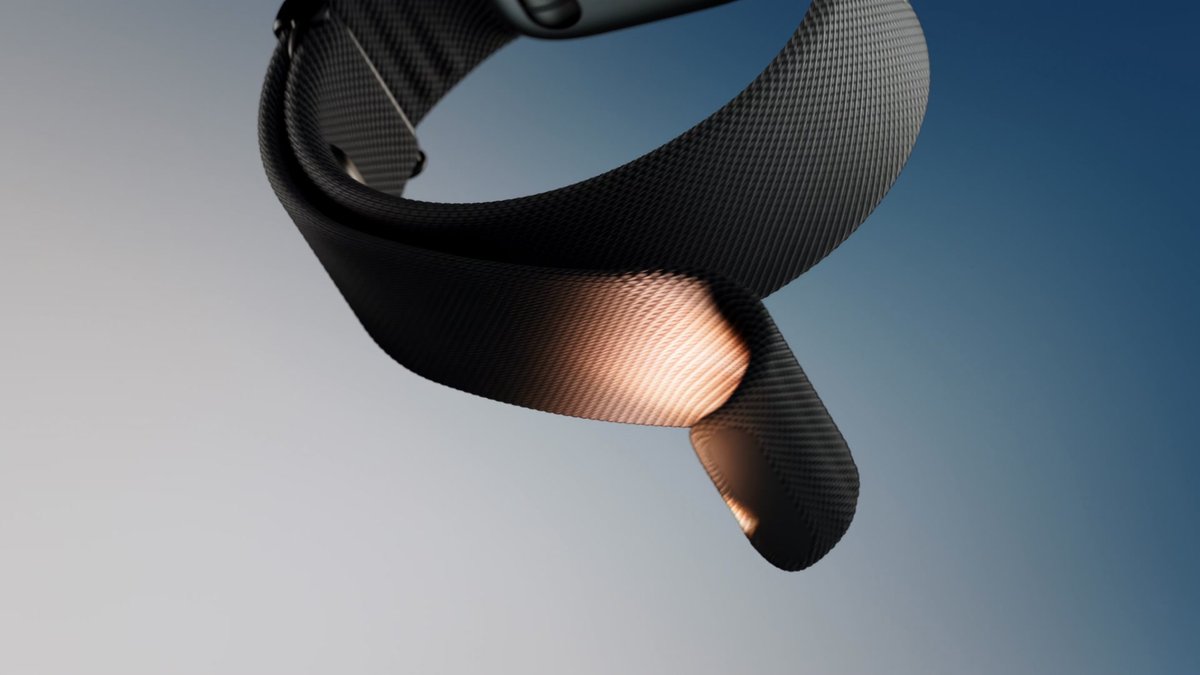
The Meta Ray-Ban Display is one of the breakout gadgets of 2026: a pair of Ray-Ban glasses with a tiny in-lens screen, paired with the Meta Neural Band — a wristband that reads the faint electrical signals in your forearm muscles (sEMG) so you can pinch, swipe, and even “handwrite” replies in the air. It feels like the future right up until the band stops responding, the display goes dark, or the charger refuses to acknowledge it exists. Because the device is so new, there is almost no third-party help out there yet, so this guide pulls every working fix into one place, grounded in Meta’s official instructions and the issues owners are actually reporting. Work through it in order — the simplest fixes are first, and they resolve the majority of cases.
Why Your Neural Band or Display Stops Working
It helps to know what you are dealing with, because the Display is really two devices that must stay in sync. The glasses hold the screen, cameras, and speakers and last up to about six hours of mixed use per charge. The Neural Band is the controller — it lasts up to about 18 hours and talks to the glasses over Bluetooth. When something “stops working,” the breakdown is almost always in one of four places:
- Power. Either the band or the glasses has drained, or it is sitting on a charger that is not actually delivering power (wrong cable orientation, weak adapter, or dirty contacts).
- The Bluetooth link. The band and glasses lost their pairing, the Meta AI app needs an update, or your phone is holding onto a stale connection.
- Fit and sensing. The band’s muscle sensors need firm, correctly positioned skin contact. Worn loose or in the wrong spot, gestures simply will not register even though the band is “on.”
- Software. A firmware update that stalled or installed badly can leave the display blank or a feature broken until you restart or reset.
Knowing which bucket your problem falls into tells you which section to jump to. If you are not sure, start with the force restart — it is harmless and fixes more than any other single step.
First, Try This: The 60-Second Force Restart
A force restart reboots the hardware without deleting your captures or un-pairing anything. It is the equivalent of turning it off and on again, and it clears most temporary freezes, dropped connections, and unresponsive gestures. Do both devices.
Force Restart the Neural Band
Press and hold the band’s button and keep holding until the LED completely fades out and turns off — this takes about eight seconds — then release. To power it back on, press and hold the button for about two seconds until the LED slowly flashes white and the band gives a short vibration.
Worth knowing: the band also powers itself off automatically after one hour with no motion. So if it seems “dead” after sitting on a desk, don’t panic — a quick press may simply wake it before you assume anything is wrong.
Force Restart the Glasses
Close both arms of the glasses. Slide the power switch away from the lenses until you see the red line (off). Then, while holding the capture button, slide the power switch back toward the lenses; when the LED turns red, release the capture button.
After about 17 seconds the glasses are ready to use again. This does not erase your photos or videos and does not require re-pairing, so it’s completely safe to do as often as you need while chasing down a glitch.
Restart both, wait a moment for them to reconnect, and test. If the band still will not power on at all, it is a charging problem — go to the next section.
Neural Band Won’t Charge or Says “Serial Number Not Recognized”
This is the single most common complaint owners report, and it has two flavors: the band shows no light and will not charge, or it charges but Meta’s app or registration system claims it cannot find your product. The good news is that several fixes work; the bad news is that a genuine hardware fault is also possible, so you want to rule out the easy causes first.
The number-one mistake: The Neural Band does not charge in the glasses case. It has its own dedicated magnetic charger that clips onto the compute module on the underside of the band, with a USB-C cable that goes into a wall adapter. Plugging the band’s USB-C cable into the charging case’s USB-C port will not charge the band. If your band “won’t charge,” check this first.
Once you are using the correct charger, work through these in order:
- Reseat the charger and check the LED. Make sure the magnetic charger is squarely attached to the compute module. A charging band shows a solid orange LED (between roughly 20–80%), blinking orange when very low (under 20%), and solid green once it is full (above 80%). No light at all usually means no contact — reattach it.
- Force the band off, then charge. Hold the band button about eight seconds until the LED fades, then place it on the charger. Several owners found a completely unresponsive band started charging only after being fully powered down first.
- Clean the contacts. Skin oil, sweat, and lotion build up on the band’s charging pins and the charger. Wipe both with a little isopropyl alcohol on a cotton swab, let them dry, and try again. This is a frequent fix for “no LED” charging.
- Flip the cable and upgrade the adapter. Reverse the USB-C cable orientation, try a different cable, and use a proper wall adapter rather than a weak laptop or hub port. A higher-output adapter has revived bands that a 5V trickle would not.
- Give it 30+ minutes. A deeply drained band can sit dark for a while before the first light appears. Leave it on the charger for half an hour before concluding it is dead.
If the band charges but the serial number is not recognized, that is a registration/warranty database issue rather than a hardware failure. You can find the serial number under the band’s clasp, printed on the small metal tab. Note it down, then contact Meta Store Support directly — and if you bought from a third-party retailer, you may be routed to Ray-Ban support instead. This error has often been resolved with a replacement, so escalate rather than fighting it for hours, though a fix is not guaranteed. The Neural Band itself is rated IPX7 (it survives hand-washing, dishes, and rain), so brief water exposure is not your culprit.
Neural Band Won’t Connect or Keeps Dropping
If the band is charged and powered but the glasses are not responding to it, you have a connection problem. The fastest path is usually a clean re-pair, but try the quick checks first.
1 Confirm the Bluetooth Basics First
Make sure the band is on (press the button — the LED should flash white), your phone’s Bluetooth is enabled, and the Meta AI app is updated to the latest version. An out-of-date app is a surprisingly common cause of a band that “won’t connect.”
It sounds obvious, but these three checks clear a large share of connection complaints before you touch anything more complicated. Update the app first, since a stale version can refuse to talk to a perfectly healthy band.
2 Wake a Sleeping Band Before Panicking
Remember the one-hour auto-off. A band that has been sitting still on a desk has likely powered itself down to save battery, so it isn’t broken — it’s asleep. A quick button press is often all it needs to spring back to life and reconnect.
This is easily mistaken for a dead device. Before you start re-pairing or resetting anything, give the button a press and wait a moment for the reconnection to land.
3 Forget the Device and Re-Pair Cleanly
Open the Meta AI app, tap the glasses icon in the top right, and go to Device settings. If the device is stuck, remove it from your phone’s Bluetooth list (“Forget This Device”), then re-add it: glasses icon → the plus icon → choose “Meta Ray-Ban Display and Meta Neural Band.”
Power on the band and hold its button about three seconds until the LED rapidly pulses white, then tap “Light is pulsing white” in the app and follow the prompts. Keep the band on its charger while it finishes pairing and updating so it doesn’t drop out mid-setup.
4 Reinstall the App if It Still Fails
If a clean re-pair still won’t hold, delete and reinstall the Meta AI app, then pair again from scratch. This clears corrupted app data that a simple re-pair leaves behind, which a fresh install wipes entirely.
It’s the software equivalent of a deep clean, and it’s worth trying before you conclude the hardware is at fault. Only after this fails should you move toward a factory reset or a support ticket.
One subtle cause Meta’s own community team has called out: a band that connects but feels intermittent — responsive one minute, dead the next — is often a fit problem, not a Bluetooth one. If reconnecting does not hold, jump to the gestures and fit section. The Neural Band is part of the same wave of wrist-worn neural interface technology that reads your body’s own signals, and like any biosensor, it lives and dies by good skin contact.
The Display Screen Won’t Turn On (Black Display)
If the band works but the in-lens screen stays dark — or the glasses seem on but show nothing — run through this sequence:
- Charge the glasses for real. Fold the arms and seat the glasses in the case so the nose bridge makes contact; the inner LED should light up to confirm charging (solid green means full, solid orange means charging, blinking orange means very low). Give a flat-dead pair at least 20–30 minutes before testing. Remember the case only works when it itself has charge — top it up over USB-C.
- Power-cycle the glasses. Slide the power switch off (red line) and back on; the LED should blink to show it is booting.
- Force restart the glasses using the capture-button-plus-power-switch method from the restart section above (~17 seconds).
- Check the brightness and that the display feature is actually active in the Meta AI app — a dimmed or toggled-off display can read as “broken” when it is just turned down.
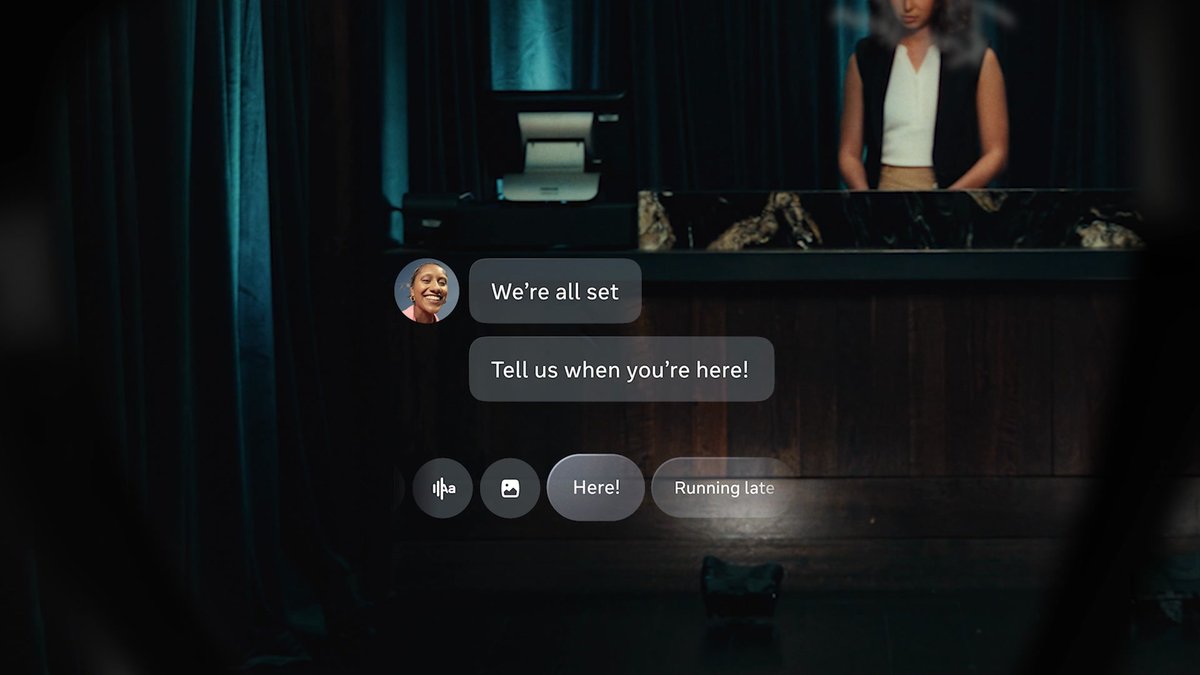
A display that powers on but shows nothing is sometimes a sign the glasses are running outdated firmware — see the update section next. The glasses are rated IPX4 (splash-resistant), so they tolerate sweat and light rain, but they are not built for submersion; water damage from a soaking is a hardware matter for Meta.
Gestures Aren’t Registering
The Neural Band reads tiny electrical signals from the muscles in your forearm, so it is unusually sensitive to how you wear it. If pinches and swipes are not landing, the fix is almost always physical, not digital. Meta’s guidance is specific:
- Wear it on your dominant hand — the hand you write with.
- Position it just past the wrist bone, toward your forearm, not down on the wrist joint.
- Keep the clasp closed and snug — comfortable but firm. A loose band loses electrode contact and gestures get flaky.
- Orient it correctly: the line marking on the band should face you, with the compute module sitting on top of your wrist.
If you have the fit right and gestures are still erratic, reposition it slightly, make sure your skin is not coated in lotion, and re-run the gesture setup in the Meta AI app. The technology that lets a wristband read your intent is genuinely new — it is the same frontier driving today’s AI-powered wearables — but it still depends on old-fashioned good contact between sensor and skin.
Stuck or Broken After a Software Update
Firmware for both the glasses and the band installs through the Meta AI app, and a stalled or failed update is a known cause of sudden problems — a feature like handwriting recognition breaking, an update hanging partway, or the display going blank on an outdated version. If a problem started right after an update:
- Keep the band on its charger and the glasses charged, and leave the Meta AI app open so the update can finish. Updates can take a while and should not be interrupted.
- Force restart both devices if the update appears stuck or finished but something is misbehaving. This resolves most post-update glitches.
- If a force restart does not fix it, a factory reset (next section) clears a bad install — after which you re-pair and let the firmware re-download cleanly.
Factory Reset: The Last Resort
A factory reset wipes the device back to its out-of-box state. Use it only after restarting and re-pairing have failed, because you will need to set everything up again — and resetting the glasses deletes any photos and videos still stored on them. Here are the official sequences:
Factory Reset the Neural Band
Press and hold the band’s button for about 16 seconds and release when the LED is quickly flashing white and amber. The band returns to factory settings, wiping its pairing and configuration back to the out-of-box state.
Because it is fully reset, you will need to unpair it in the Meta AI app (Device settings → General → Unpair wristband), remove it from your phone’s Bluetooth, and pair again from scratch. Keep it on the charger while it re-downloads firmware afterward.
Factory Reset the Glasses
With the glasses out of the case, charged, and powered on, fold both arms closed. Rapidly press the capture button five times until the LED turns orange, then press and hold the capture button until the LED starts flashing, and release.
This deletes all captures stored on the glasses and requires re-pairing, so back up any photos or videos first if you can still access them. To reset the charging case itself, hold the button on the back of the case for more than 16 seconds.
After a reset, re-pair through the Meta AI app, keep the band on its charger while the firmware re-installs, and your device should be back to a clean slate.
LED & Symptom Cheat Sheet
Two quick references to keep handy. First, what the lights actually mean while charging:
| Device | LED | What it means |
|---|---|---|
| Glasses (in case) | Solid green | Charged (above ~95%) |
| Glasses (in case) | Solid orange | Charging (~20–95%) |
| Glasses (in case) | Blinking orange | Low battery (under 20%) |
| Neural Band | Solid green | Charged (above ~80%) |
| Neural Band | Solid orange | Charging (~20–80%) |
| Neural Band | Blinking orange | Low battery (under 20%) |
And the fastest first move for each symptom:
| Symptom | Most likely cause | First thing to try |
|---|---|---|
| Band won’t power on | Drained battery | Charge 30+ min on its magnetic charger, then power on (hold 2s) |
| Band won’t charge / “serial not recognized” | Wrong charger, dirty contacts, or hardware | Use the band’s own charger, clean contacts, flip the cable; if it persists, contact Meta |
| Band won’t connect | Bluetooth/app or stale pairing | Update the Meta AI app, forget the device, and re-pair |
| Gestures not registering | Loose or mis-positioned band | Reposition snug, just past the wrist bone, line facing you |
| Display won’t turn on | Drained glasses or software hang | Charge in the case, then force restart (~17s) |
| Broke after an update | Failed firmware install | Force restart both; if needed, factory reset and re-pair |
When to Stop Troubleshooting and Contact Meta
Most issues are fixed by the steps above, but some are genuinely hardware, and you should not waste a weekend on those. Reach out to Meta Store Support if:
- The band still will not charge after you have used the correct charger, cleaned the contacts, swapped cables and adapters, and waited it out.
- The serial number is not recognized for support or warranty — this is a known issue Meta has resolved with replacements.
- The glasses took water damage, the lenses or display are physically faulty, or a factory reset did not restore normal operation.
Have your serial number ready (under the band’s clasp on the metal tab) and describe exactly which steps you have already tried — it gets you to a replacement faster. Because the Display launched recently, Meta’s support has been actively swapping out faulty Neural Bands, so a hardware fault is not the end of the road.
Frequently Asked Questions
Why won’t my Meta Neural Band turn on at all?
The most common reason is a fully drained battery combined with charging on the wrong charger. The band uses its own magnetic charger that clips to the compute module underneath it — not the glasses case. Attach the correct charger, leave it for at least 30 minutes (a dead band can stay dark for a while before the first orange light appears), then hold the button about two seconds to power on. If there is still no LED, clean the charging contacts with isopropyl alcohol, flip the USB-C cable, and try a stronger wall adapter.
How do I reset the Meta Ray-Ban Display Neural Band?
For a non-destructive force restart, hold the band’s button until the LED fully fades out (about eight seconds), then power back on. For a full factory reset, hold the button for about 16 seconds and release when the LED flashes white and amber — this wipes it to factory settings, so you will then need to unpair it in the Meta AI app and your phone’s Bluetooth and pair again. Try the force restart first; only factory reset if restarting and re-pairing have not worked.
Why does my Neural Band say “serial number not recognized”?
That message points to Meta’s registration or warranty database rather than a fault you can fix at home. Locate the serial number under the band’s clasp on the small metal tab, then contact Meta Store Support directly. Owners hitting this error have frequently had their units replaced, so it is worth escalating rather than retrying endlessly.
Why aren’t my gestures working even though the band is on?
Gesture sensing depends on firm, correctly positioned skin contact because the band reads your forearm muscle signals. Wear it on your dominant (writing) hand, positioned just past the wrist bone, with the clasp snug and the line marking facing you and the compute module on top of your wrist. A loose or mis-placed band is the usual reason pinches and swipes fail to register, even when the band appears connected.
Can I charge the Neural Band in the glasses case?
No. The Neural Band and the Display glasses use two separate chargers. The glasses charge by folding into the case; the band charges on its own magnetic charger that connects to a USB-C wall adapter. Plugging the band’s USB-C cable into the charging case’s USB-C port will not charge the band — this is one of the most common reasons people think their band is broken.
Is the Meta Neural Band waterproof if it got wet?
The Neural Band is rated IPX7, so it can handle hand-washing, doing dishes, and rain without trouble, and brief water exposure is unlikely to be why it stopped working. The glasses are rated IPX4, meaning they resist splashes and sweat but are not built for submersion. If either device was soaked or submerged and then failed, treat that as possible water damage and contact Meta rather than troubleshooting further.
Troubleshooting steps are based on Meta’s official help documentation and reflect the Meta Ray-Ban Display and Neural Band as of June 2026; features and steps can change with software updates. For hardware faults or warranty questions, contact Meta Store Support.
About the Author
Elena Brooks
Elena Brooks is the person her group chat texts when something at home stops working or a health trend starts trending. She’s spent years turning that instinct into a job — digging into the research behind everyday questions, calling the experts, and writing up what holds up and what doesn’t. Her beat is wherever curiosity points: kitchens, cars, pets, sleep, money, and the occasional meteor shower.